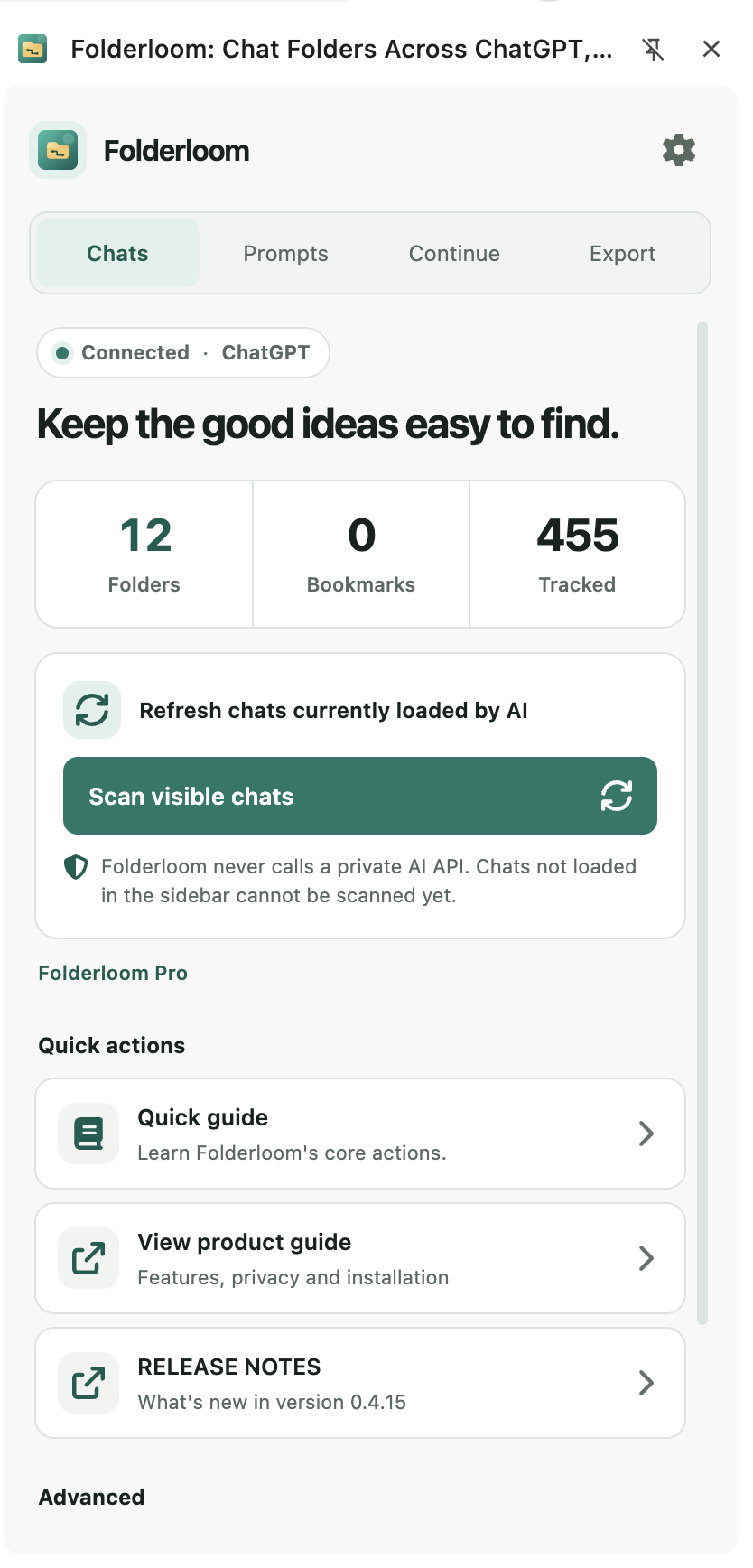
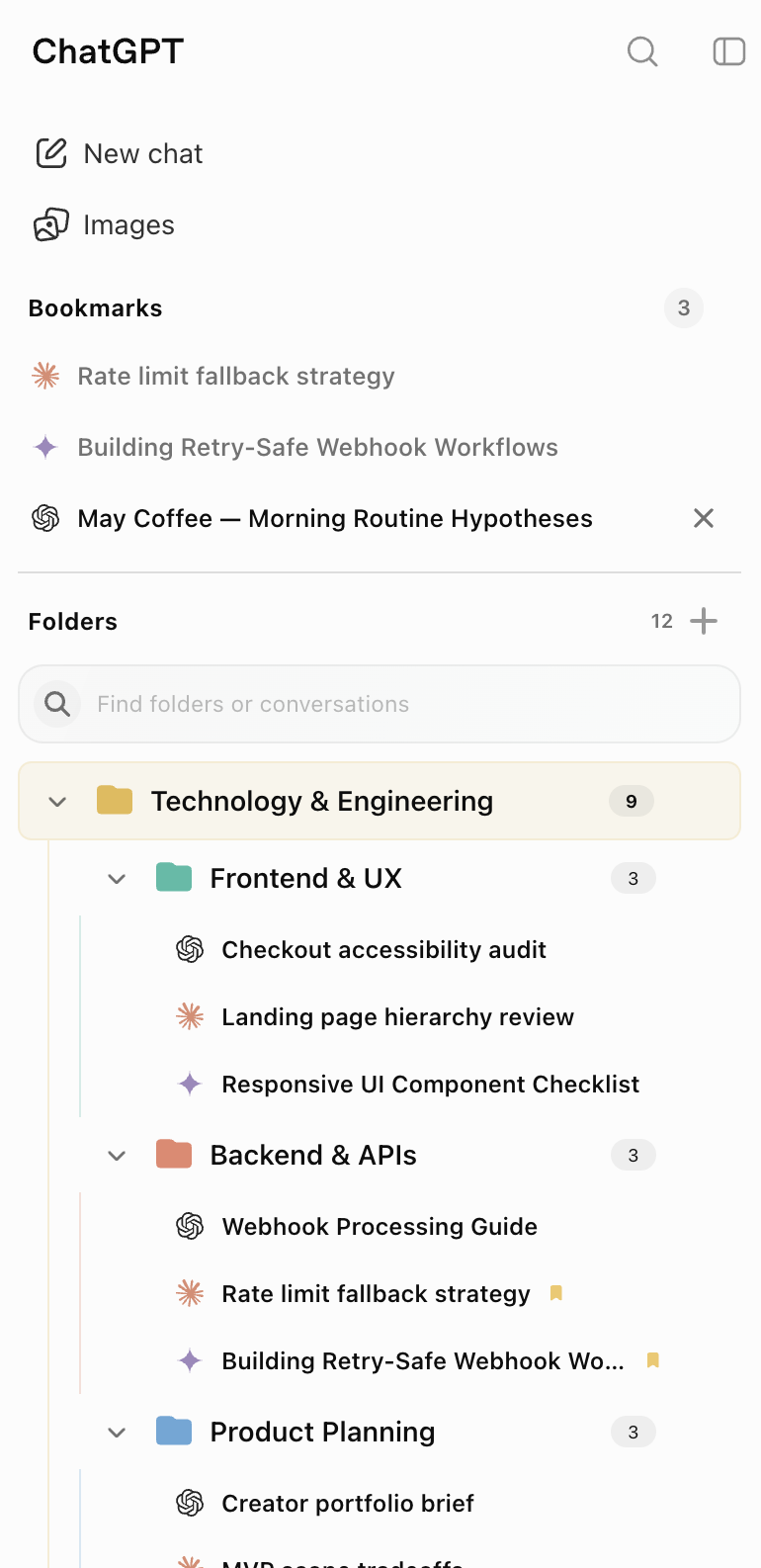
Keep one project together across three AI tools.
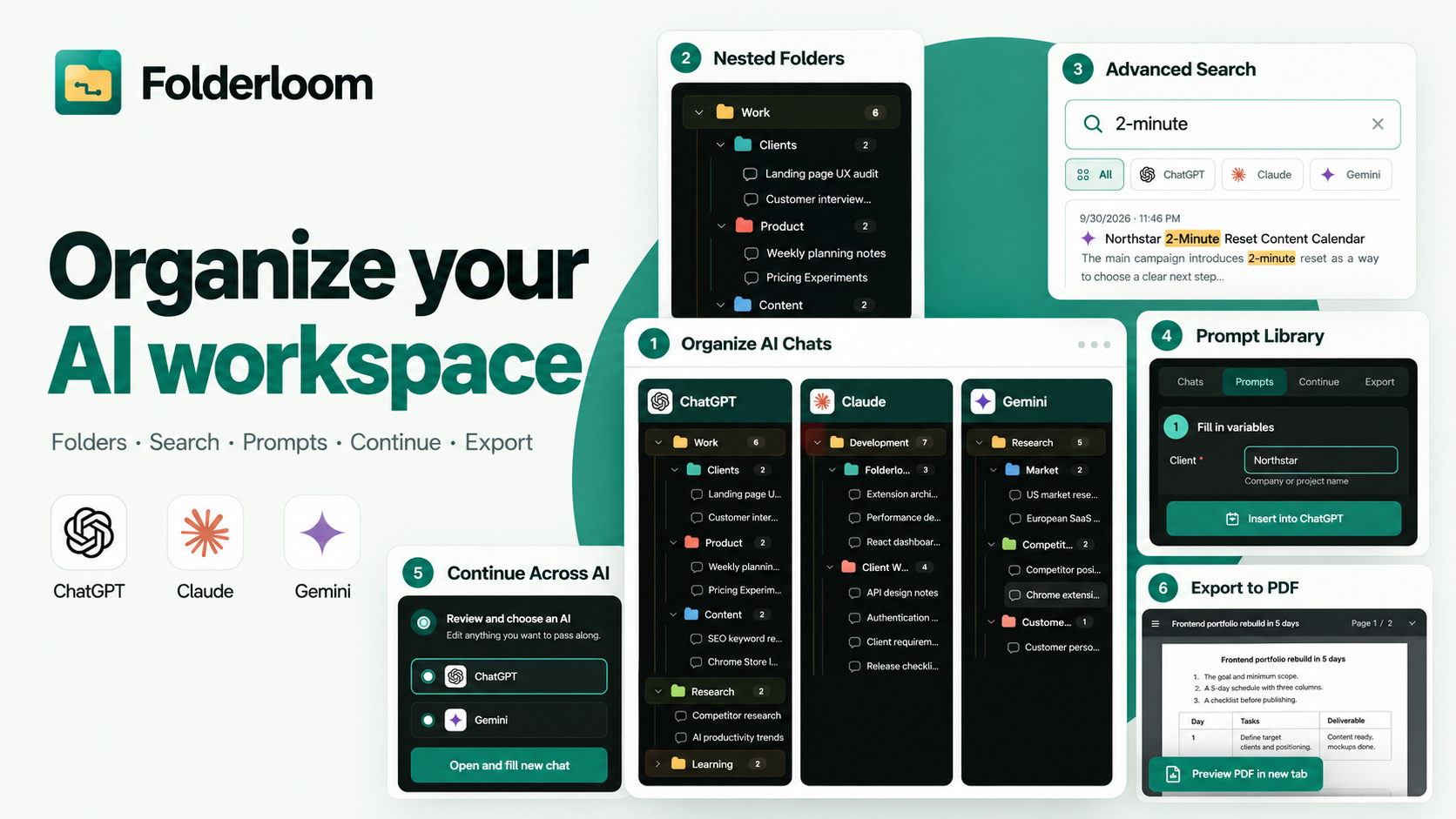
Bring related ChatGPT, Claude and Gemini chats into one folder tree. Open any chat in its original AI site.
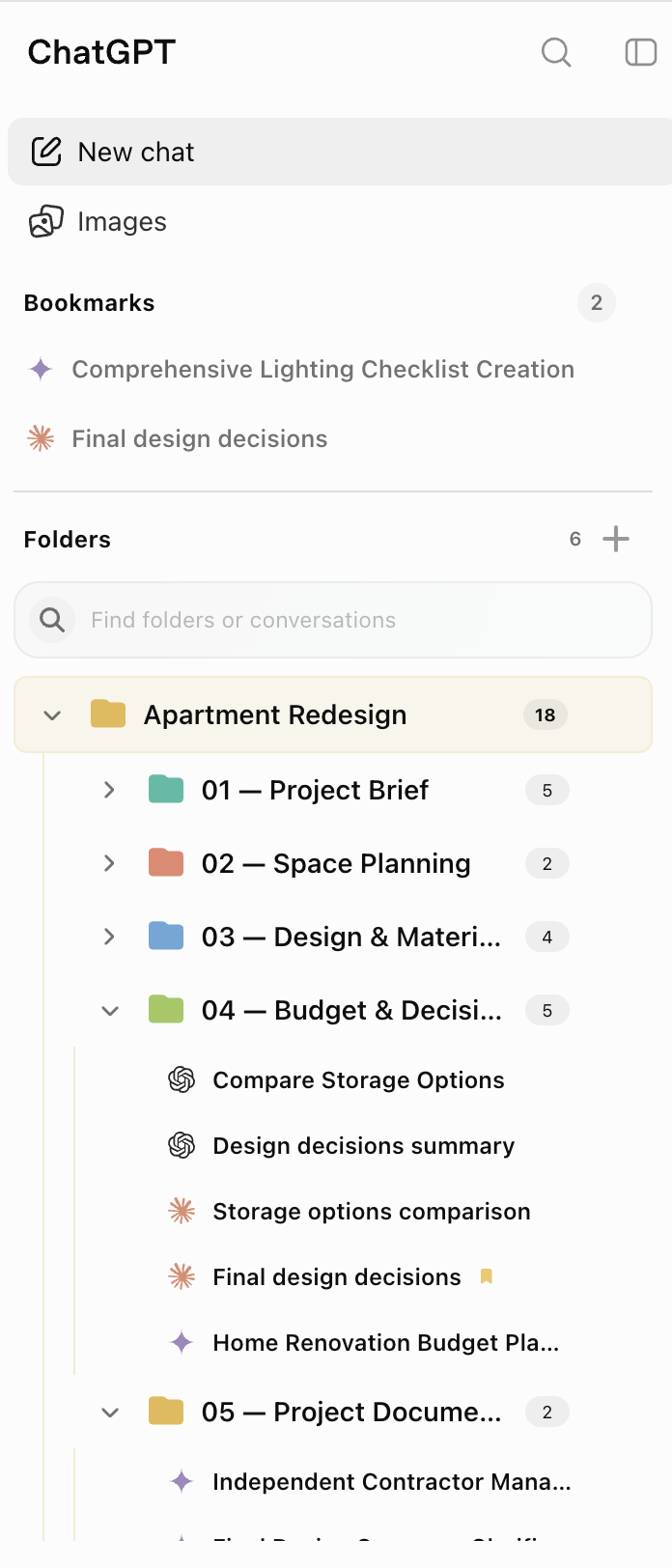
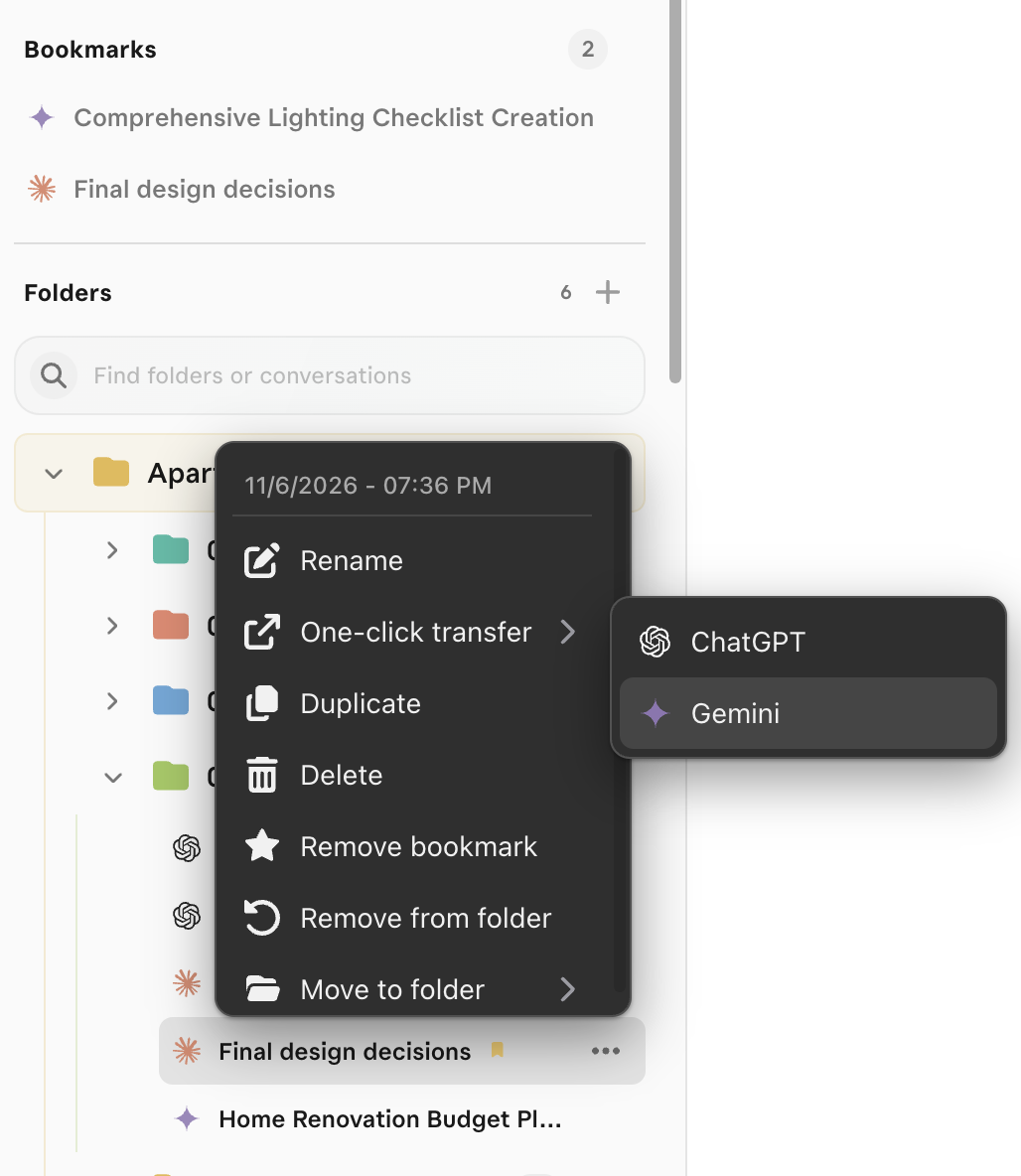
- Create a project folder. Add a folder, choose a color, then move a chat with its chat menu or drag it onto the folder.
- Bookmark what you reopen. Keep key chats under Bookmarks and type a folder or chat name into the sidebar search.
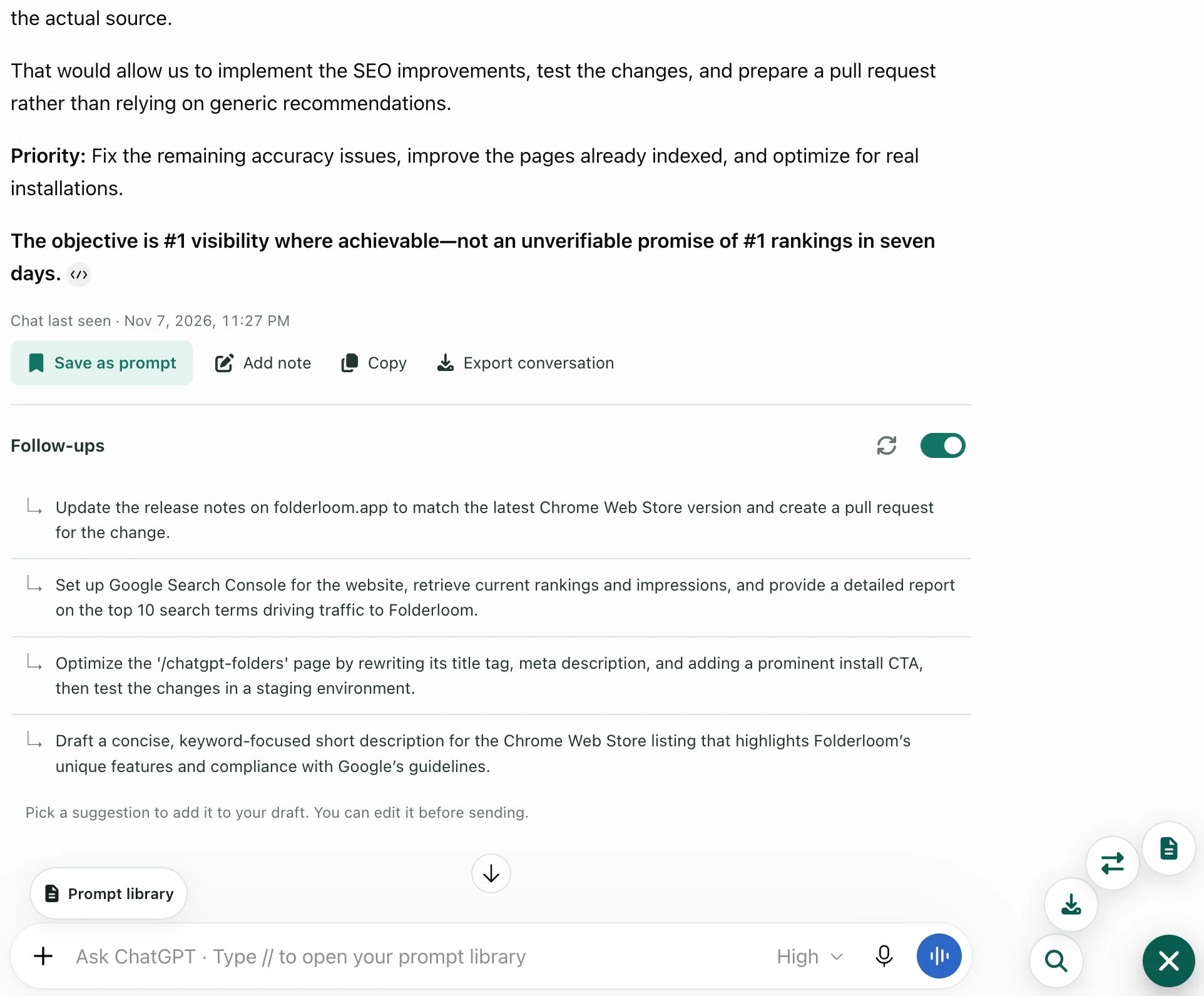
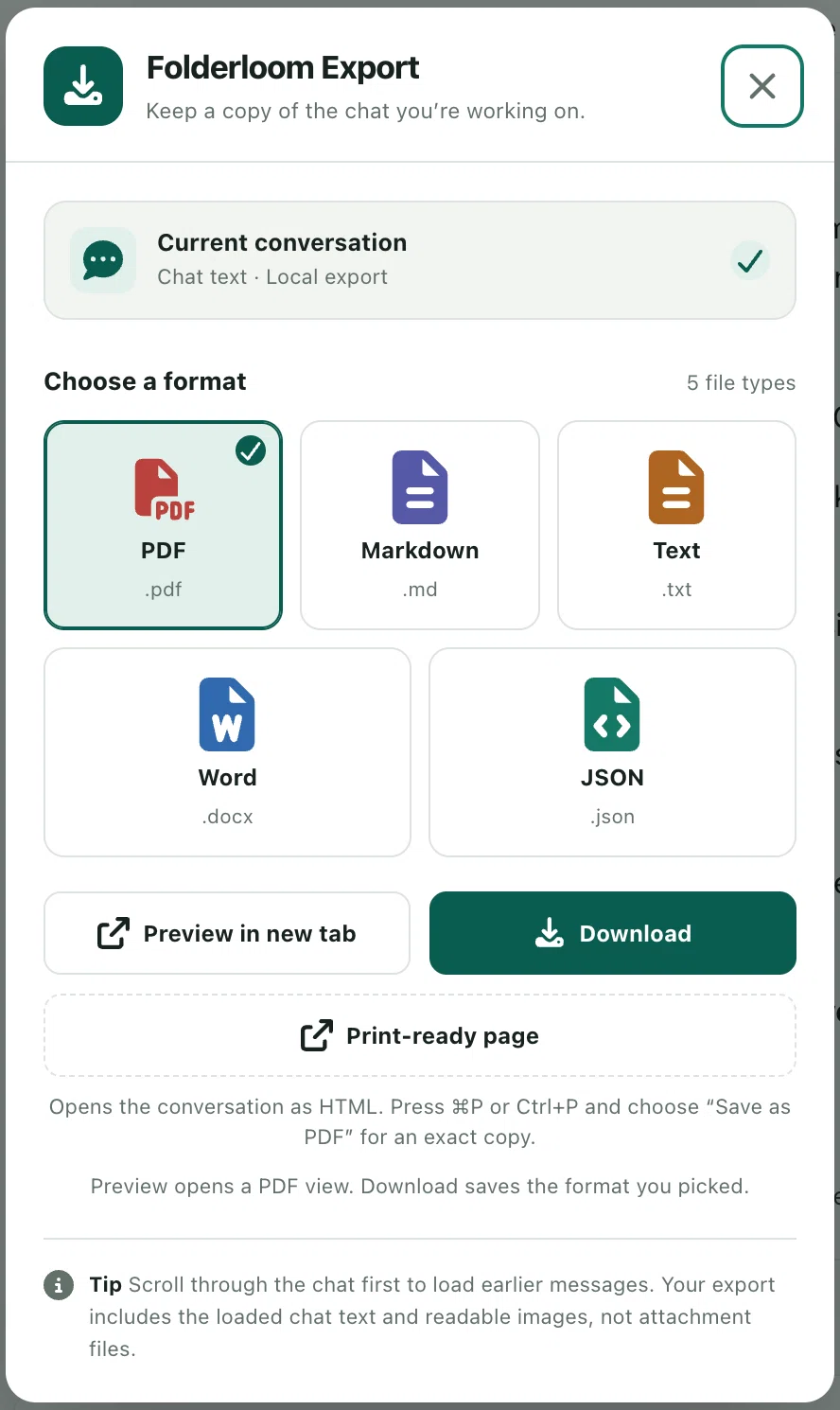
- Use the conversation actions. Save a prompt, edit a note, copy the chat, or open Export from the row above the thread.
Use subfolders and colors as projects grow. Delete removes the Folderloom reference; the original AI chat stays unchanged.
Read the chat folders guide
Find the answer you remember, not just the title.
Search the chat text saved on this device and jump back to the original conversation.
- Turn on local capture. Enable optional chat capture in Folderloom, then open the chats you want to search.
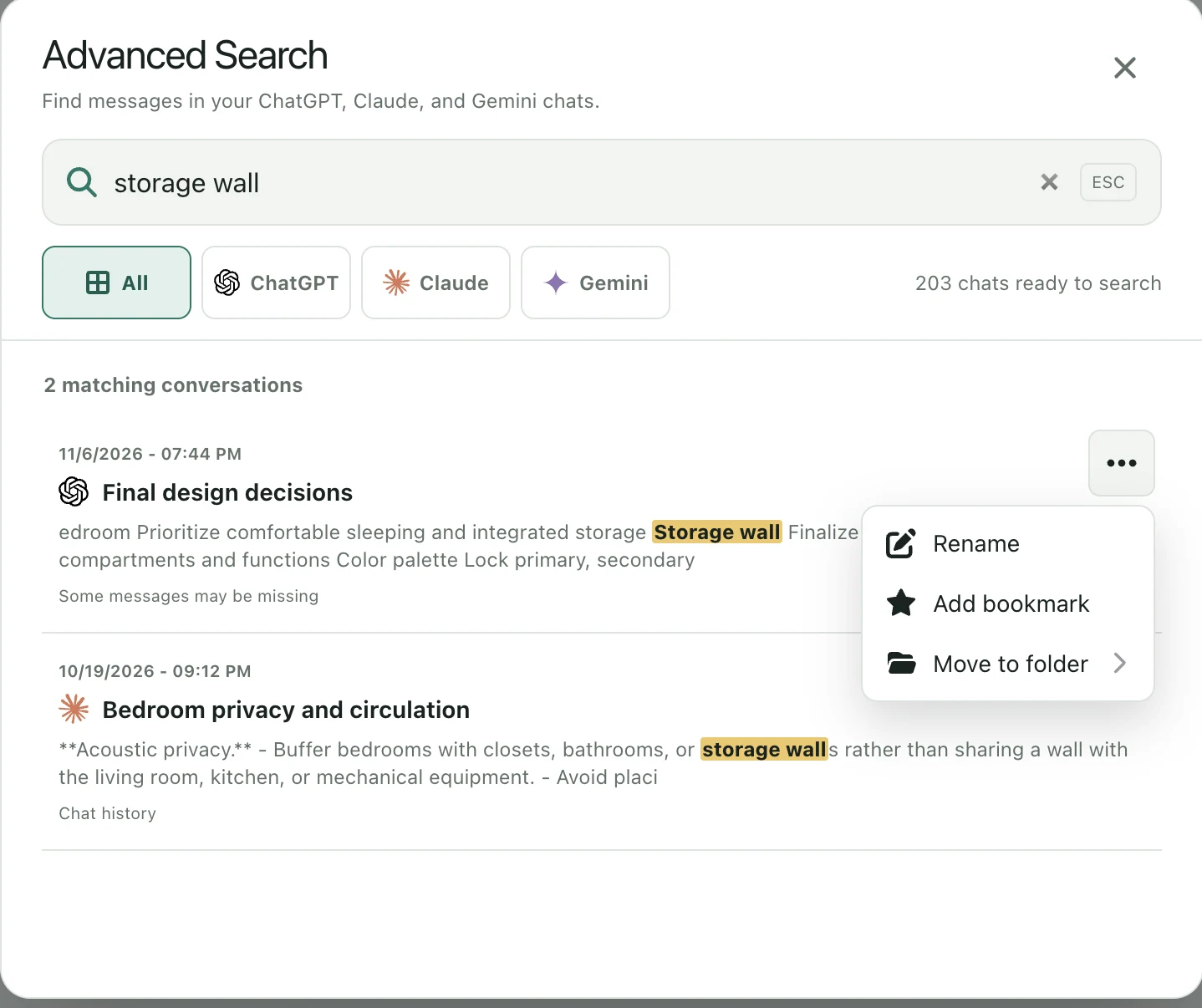
- Search a phrase. Open Advanced Search and enter a word or phrase such as 'storage wall'.
- Filter and open. Choose All, ChatGPT, Claude or Gemini, then open a matching message or use its actions menu.
Search covers cached text on this device, not your entire account history. Unloaded messages, images and attachments may be missing; queries and cached text stay on your device.
Read the Advanced Search guide
Keep the instructions that work. Reuse them anywhere.
Save a prompt once, organize it in your library and insert it into ChatGPT, Claude or Gemini.
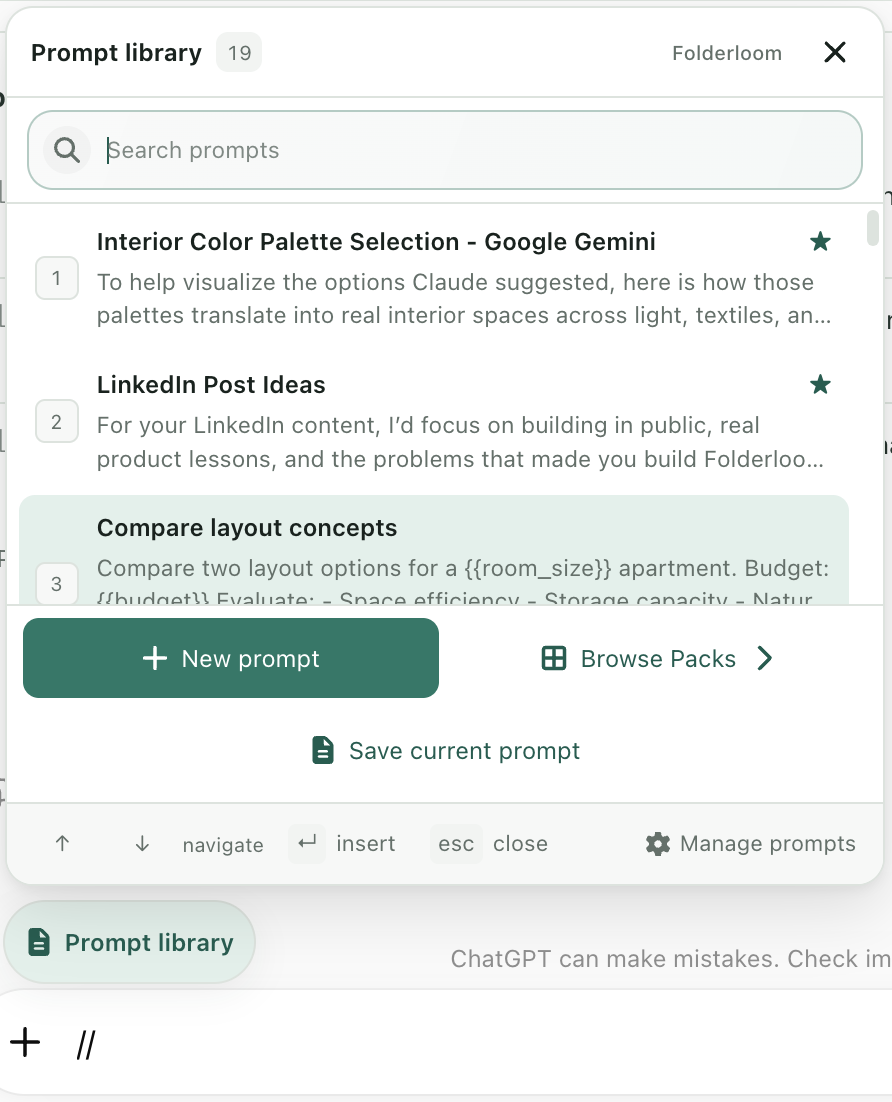
- Open Prompt Library. Use the button above the composer or the floating Folderloom button.
- Pick a template. Choose a saved prompt and fill in its variables.
- Insert and review. The filled text goes into your draft; review it before you send.
Prompt variables are included during your trial and with Pro. Inserting a prompt does not send it.
Read the Prompt Library guide
Find your place in a long chat and keep the reasoning beside it.
Use Contents to move around a long conversation, then keep a note and a few follow-ups with it.
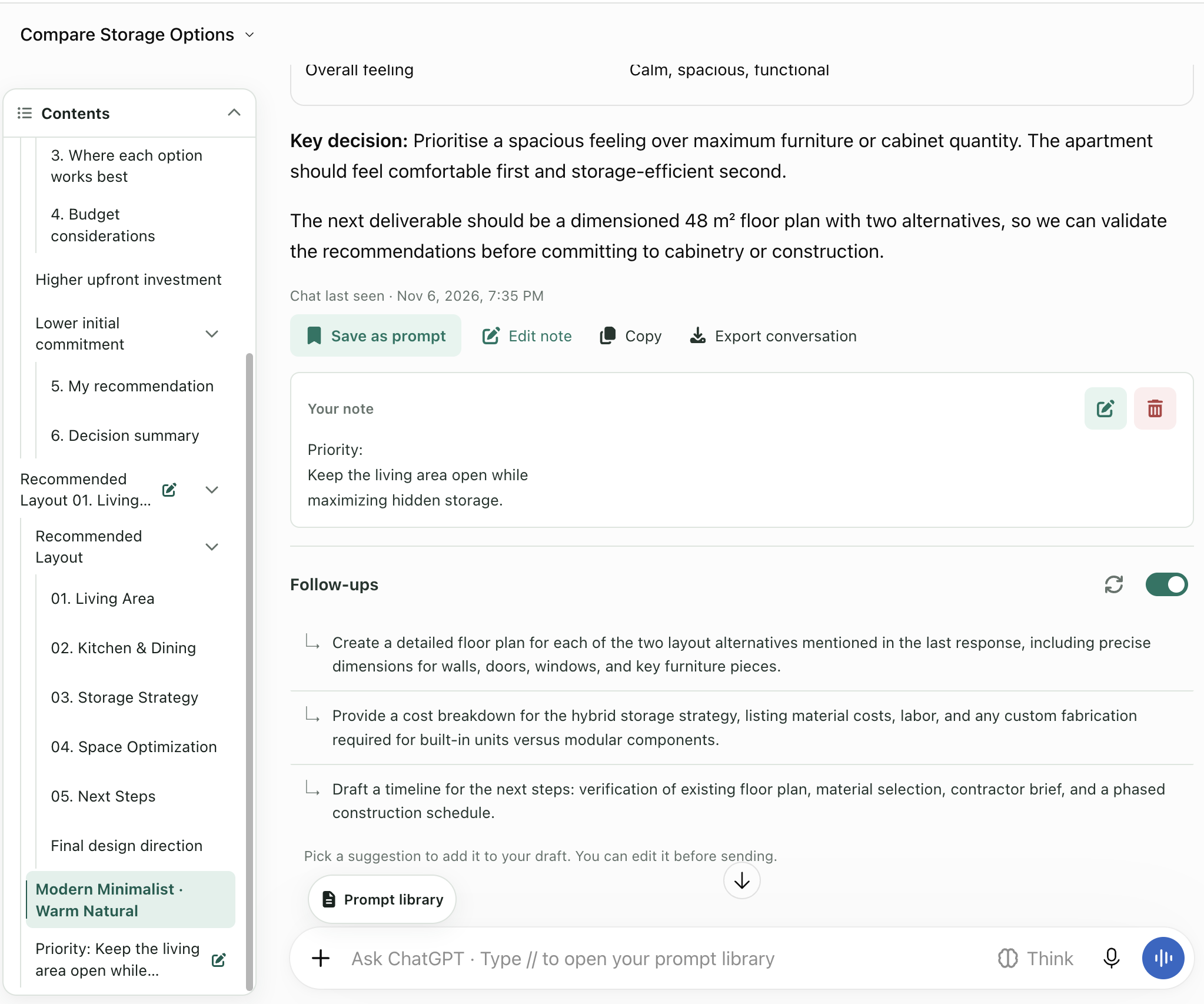
- Jump to a section. Open Contents and choose the part of the conversation you need.
- Keep a note. Add the decision, priority or constraint you want beside the chat.
- Add a follow-up. Turn on Follow-ups, pick a suggestion and edit it in your draft before sending.
Notes and follow-ups stay with the conversation in Folderloom. Picking a suggestion only fills your draft; you still press Send.
Give your next AI the context you choose.
Prepare a handoff from the current chat, edit it and continue in another AI.
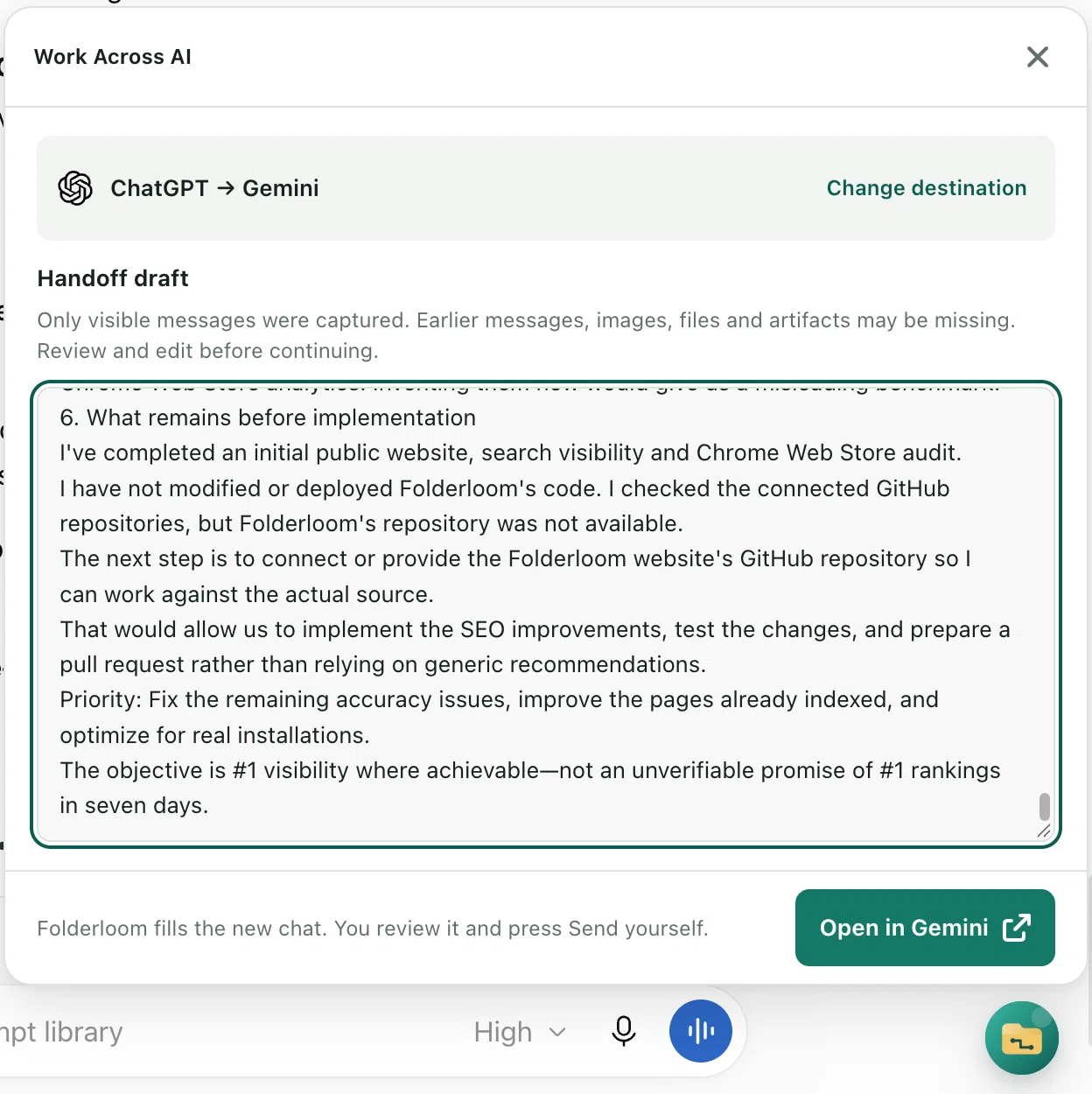
- Open Work Across AI. Start it from the chat you want to carry forward.
- Review the draft. Edit the captured text and instructions before continuing.
- Open the destination. Choose Change destination, then Open in Gemini and press Send yourself.
Only available text and code carry over. Attach images, files and artifacts separately; unloaded history may be missing. This is a reviewed handoff, not automatic synchronization.
Read the Continue across AI guide


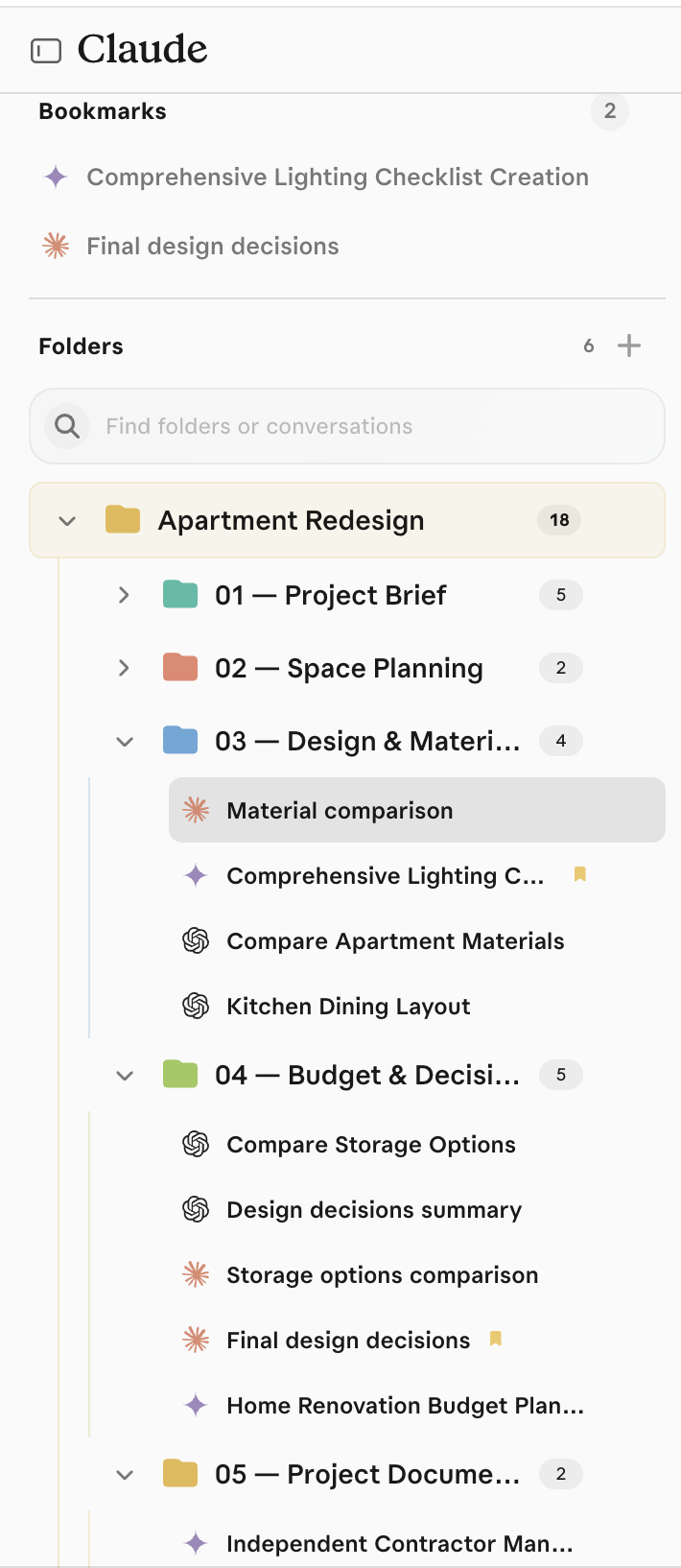
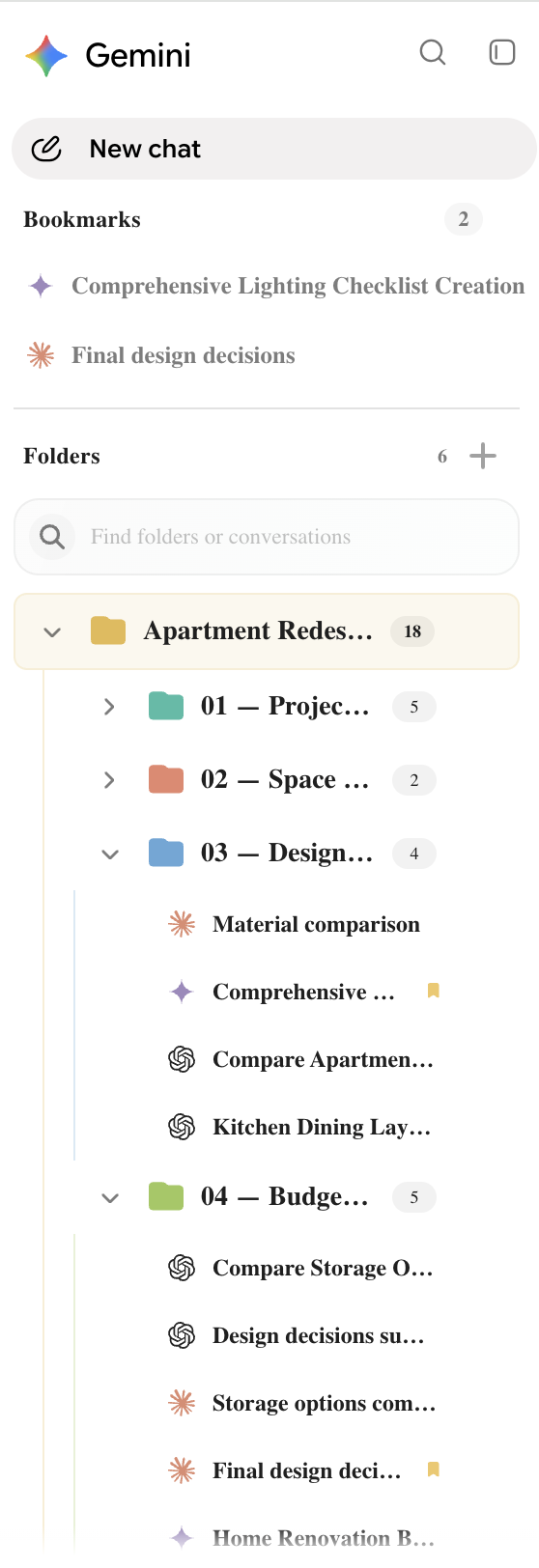






 ChatGPT
 Claude
 Gemini