Claude Prompt Library: Save and Reuse Your Own Prompts
FOLDERLOOM · CLAUDE PROMPT LIBRARY
Keep the instructions you use repeatedly close to your Claude chats. Save a reviewed prompt in Folderloom, organize it by task and insert it again when you need it. You choose when to send.
Prompt examples or a personal prompt library?
A prompt example gives you a starting point for a task. A personal prompt library stores instructions you have tested and want to use again. If you are looking for Claude prompt library examples, start with one recurring task rather than collecting a long list you never revisit.
Folderloom is a Chrome extension with its own local Prompt Library; it is not a native Claude feature or an Anthropic service. You can adapt an example, save the version that works for your workflow and reuse it in the supported AI sites.
Save the instruction, not a whole conversation
Save Current Prompt reads only the current unsent composer draft after you choose the action. Review it before saving. New prompt lets you write an instruction directly in the library instead.
For a writing review, keep the review criteria in the saved prompt and add the new draft when you use it. Saving a prompt does not copy the conversation history, responses, attachments or Claude Project knowledge.
Organize prompts around the work you repeat
Use a small set of prompt folders, such as Writing, Research and Review. Give each prompt a title that names the result: Review a client proposal is easier to choose than Prompt 12. Favorite the instructions you reach for most often.
The prompt tree is separate from your conversation folders. Prompts are shared across ChatGPT, Claude and Gemini within the same extension install, while each AI workspace keeps its own conversation organization. A shared prompt does not guarantee the same answer from different models.
Free prompts and Pro variables
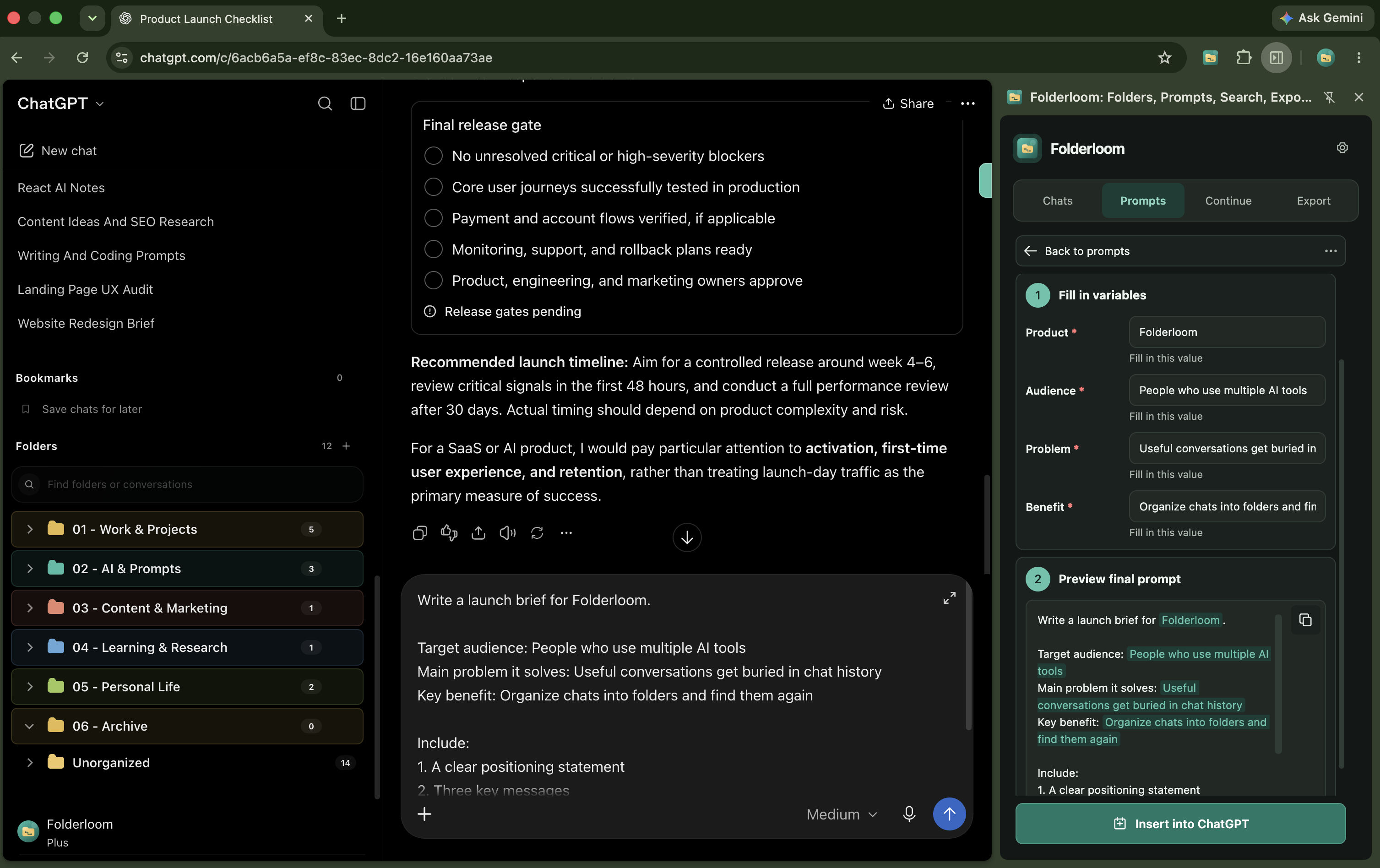
Free includes five saved prompts and three prompt folders shared across supported AI sites. Pro removes those count limits and adds variables using placeholders such as {{audience}}. These prompt allowances are separate from chat-folder and bookmark limits.
With variables, enter the changing values and review the rendered prompt before insertion. On Free, use ordinary text placeholders and edit them in the composer yourself. Either way, check for leftover placeholders before sending.
A saved prompt is not Claude Project context
Claude Projects provide native instructions and knowledge for work inside that Project. A Folderloom prompt is text you choose to insert into a composer for a particular request. Saving it in a local folder does not change Claude’s Project settings or make it available to collaborators.
Use native Project instructions for persistent context within Claude. Use saved prompts for repeated actions such as reviewing a draft, extracting questions or comparing options. Add the reference material the task actually needs; a prompt cannot retrieve a file just because it names it.
Review privacy before saving and before sending
A Google-connected Knoveya account is required. Saved prompt text stays in Chrome local storage, separated by account, and is not sent to Knoveya. The library does not sync to another device, even when Pro access follows your account.
Folderloom never presses Send. Once you send the inserted text, Claude receives it under its own terms and account settings. Remove confidential details from reusable prompts and protect the Chrome profile that holds your local library.
If a saved prompt does not appear or insert
Check that you are using the same Chrome profile and connected Knoveya account where you saved it. Open a supported AI page, refresh it after an extension update and make sure its composer is ready before trying Insert again.
If the website has changed and insertion is unavailable, keep the saved prompt and retry after the page is ready. Check the composer before retrying to avoid adding the same text twice. Do not assume a successful insertion means a message has been sent.
Save and reuse a prompt in Claude
- Install Folderloom from the Chrome Web Store, connect your Knoveya account with Google and open Claude in Chrome. Refresh a Claude tab that was open before installation.
- Write a reusable instruction in Claude’s composer without sending it. Open Prompts in the Folderloom Side Panel and choose Save Current Prompt, or create a New prompt and enter the text yourself.
- Review the captured text, title and destination folder before saving. Remove private details that should not become part of a reusable template.
- Select the saved prompt when you need it again. Use Insert to fill the active supported composer, then check the text before sending. Pro template variables let you fill changing details and review a final preview.
- Send the reviewed prompt yourself in Claude. Check the answer and refine your saved instructions if they did not produce a useful result.
Example: a reusable review prompt
Review this draft for the intended reader.

Reader: [describe the audience]
Goal: [describe what the draft should help them do]

1. Identify unclear wording and unsupported claims.
2. Suggest three specific improvements.
3. Return a revised draft without inventing facts.

Draft: [paste only the text you intend to send]

On Pro, replace changing fields with variables such as {{audience}}.