How to organize ChatGPT, Claude and Gemini chats
FOLDERLOOM GUIDE
Use project folders for context, bookmarks for important chats and Advanced Search when you remember a phrase from a cached conversation.
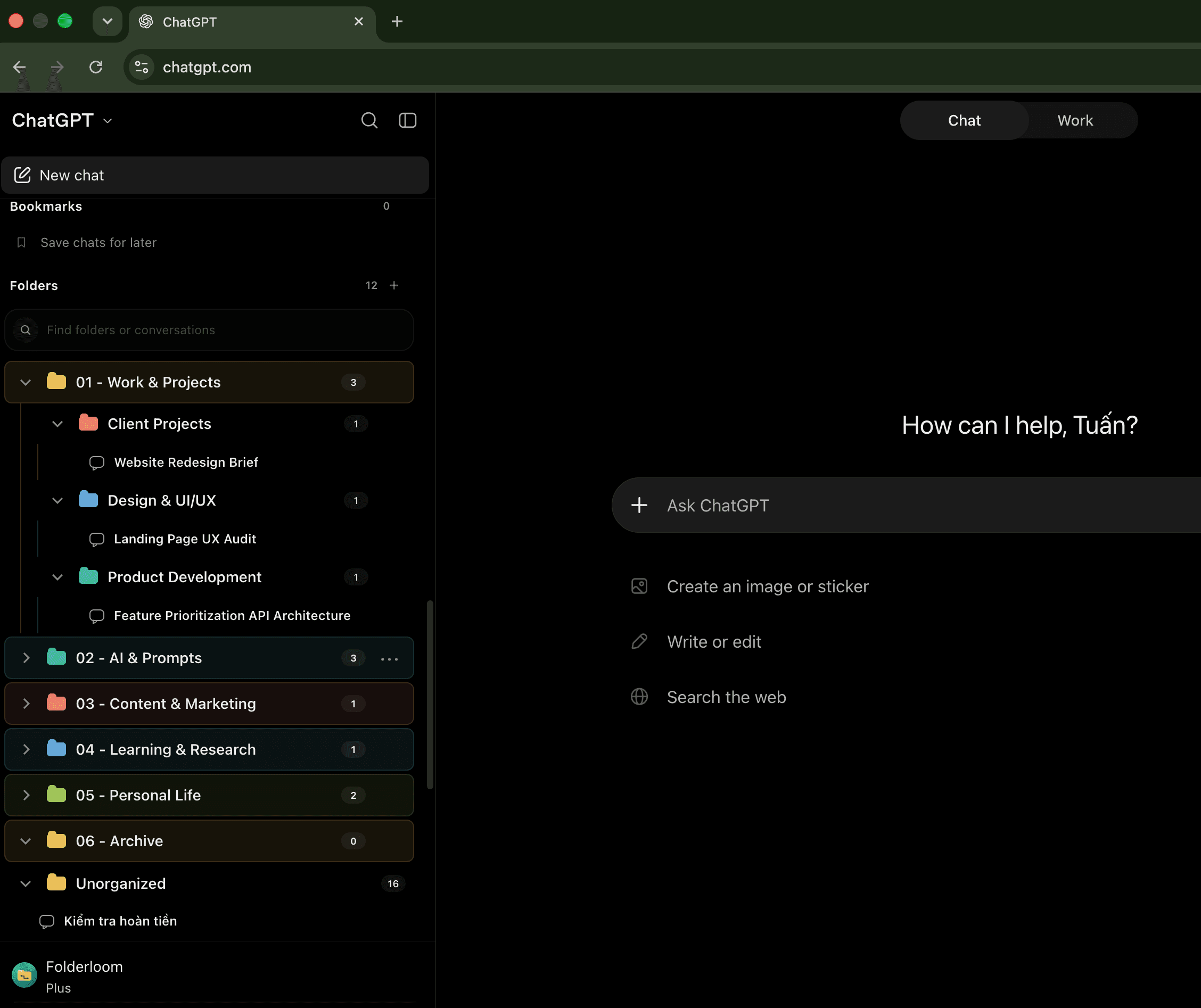
Start with projects
ChatGPT, Claude and Gemini keep separate histories. Your work usually does not. A conversation about one product can start in ChatGPT, continue in Claude and end in Gemini.
Put those conversations together by project. You are more likely to remember “Folderloom onboarding” than the name of the AI tool you used three weeks ago.
Work
  └── Folderloom
      ├── Product
      ├── Marketing
      ├── Research
      └── User feedback

  Personal
  ├── Learning
  ├── Travel
  └── Ideas
Start with a few broad folders. Add detail only when a folder becomes hard to scan.
Use three simple tools
| Tool | Use it when |
|---|---|
| Folder | You know which project the conversation belongs to. |
| Bookmark | You will open the same conversation again. |
| Search | You remember a word in the chat title or folder name. |
You do not need to sort every quick question. Organize the conversations you expect to use again.
Set it up in five minutes
- Create four or five broad folders: Work, Learning, Personal, Reference and Archive.
- Move only the useful conversations you already know you want to keep.
- Bookmark the two or three chats you revisit most often.
- Add a subfolder when scanning a folder takes longer than opening the chat through search.
Keep using your AI tools normally. Let the structure grow from real work instead of designing a perfect system first.
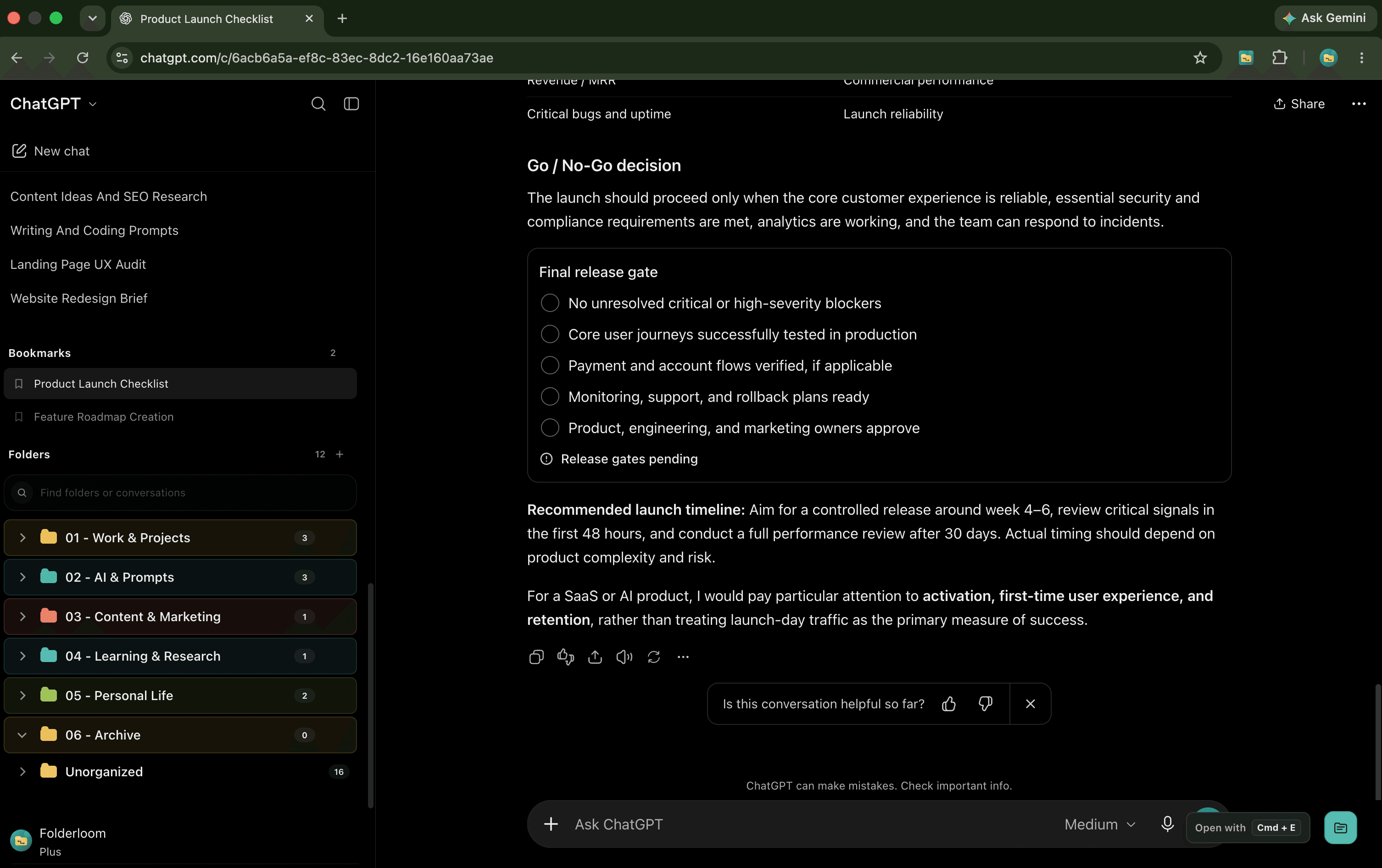
Use one system across ChatGPT, Claude and Gemini
If you use more than one AI, organizing around the project keeps the workflow consistent. Folderloom adds folders, nested folders, bookmarks and local search to the conversations already visible in each supported AI interface.
Your organization data stays in the browser. Folderloom does not turn separate AI histories into a cloud workspace or sync chat content to Knoveya.
Project first. AI second.
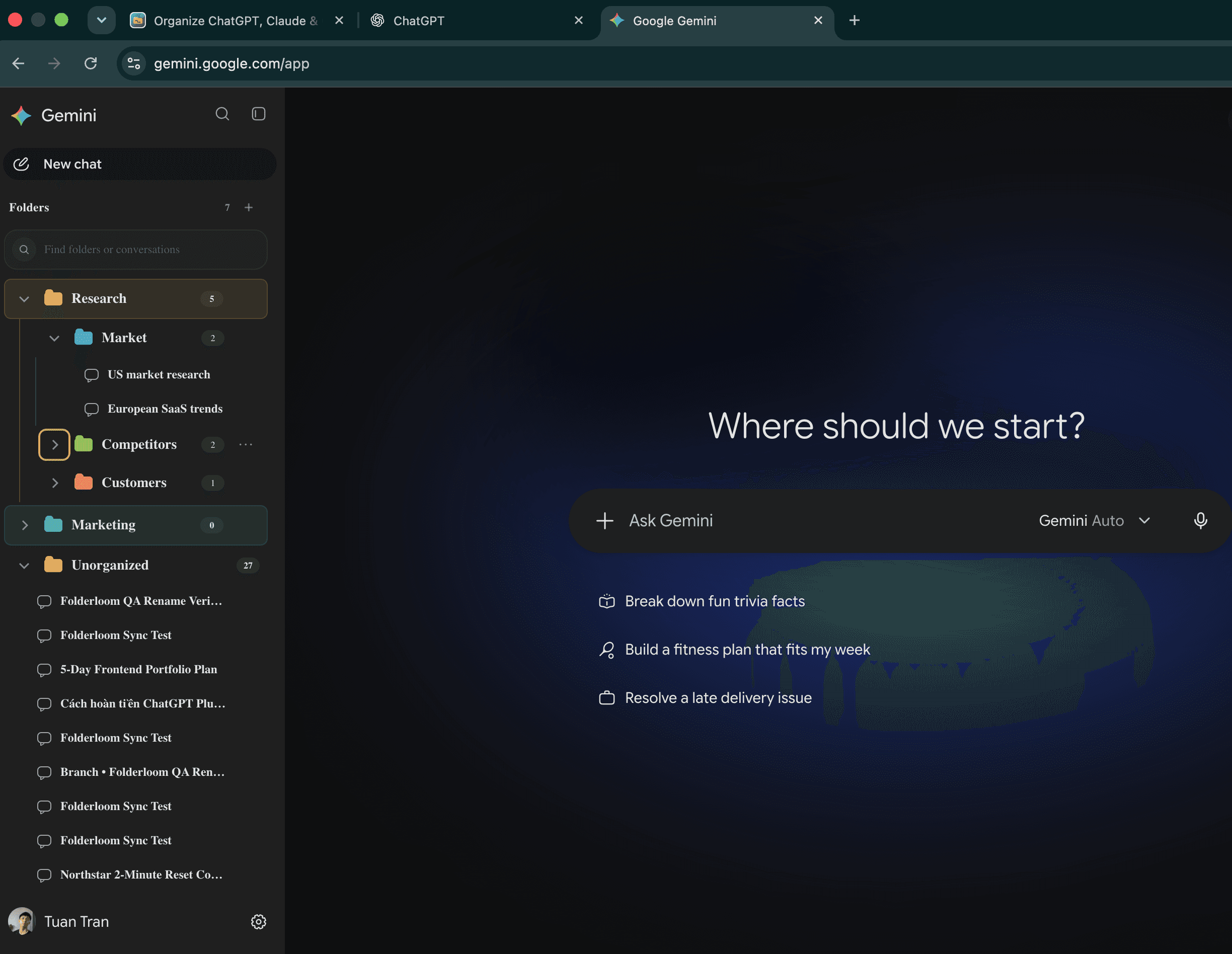
Find a phrase inside a cached conversation
Open a chat to let Folderloom cache its available text locally, then use Advanced Search to look for a phrase. Results highlight matching words and open the original chat. A result from another supported AI opens in a new tab.
Free lets you open the five newest chats matching your search. Other results stay visible with blurred details and an upgrade option; Pro opens every match. Messages that haven’t loaded, images and attachments may be missing. This cache stays on this device and can be cleared in Advanced Search.
Need a document to keep? Folderloom Pro exports the loaded messages of a chat as a local PDF. Follow the PDF export steps and review the preview for missing history or attachments.
Prompts and reviewed handoffs
Folderloom includes a local Prompt Library. Save a useful prompt, place it in a prompt folder and insert it into the current composer for review. Pro prompts support variables such as {{client}}.
Continue across AI creates an editable draft from the messages currently visible in the active chat. You choose the destination, review the draft and decide whether to send it. It never submits a message automatically.
All Folderloom features require a Knoveya account connected with Google. Folders, prompts and cached conversation text stay local to each device. Free includes three cross-AI transfers per UTC month; Pro removes that transfer limit. Unloaded messages, images, files and artifacts may not carry over.