ChatGPT Folders: How to Organize Existing Conversations
FOLDERLOOM · CHATGPT FOLDERS
Group the ChatGPT conversations you already have, then find them again without scrolling through a long history. Start with native Projects when you need shared context, or use Folderloom for a local folder tree.
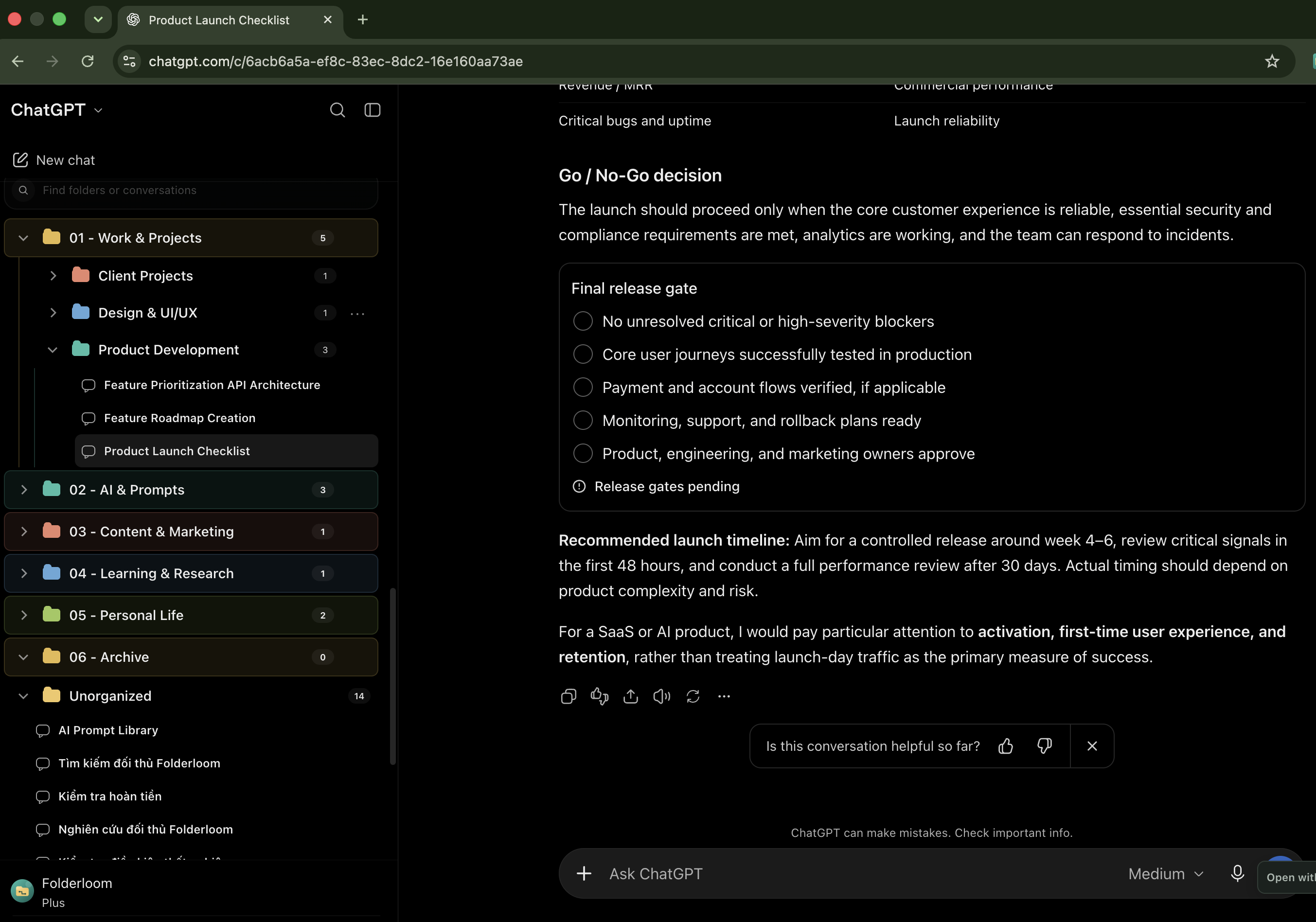
Can you put existing ChatGPT conversations into folders?
You can organize chats after the conversation has started. For native organization, ChatGPT Projects group related chats with project instructions and files. Open an eligible chat’s menu and choose Move to project, or drag the chat onto a Project.
For a folder tree inside Chrome, Folderloom adds local folders, nested subfolders and bookmarks to the ChatGPT sidebar. Moving a Folderloom item changes where you find it in that tree; it does not move the chat into a native Project or change the context ChatGPT receives.
Choose native Projects or a folders Chrome extension
Use a native Project when several chats should work with the same instructions or reference files. You do not need Folderloom just to group eligible chats inside a Project.
Choose Folderloom when you want a nested tree for browsing existing conversations, bookmarks for frequently used chats and local search. The extension also supports Claude and Gemini, with separate conversation organization for each AI workspace.
Start with a small folder structure
Create one folder for a client, research topic or ongoing task. Move a few relevant chats into it before adding more structure. A folder called Client website is easier to recognize than a long list of generic labels.
Add a subfolder when you repeatedly look for a specific group of chats, such as Research or Decisions. Free includes three chat folders and ten bookmarks per isolated workspace; nested folders count toward the folder limit. Pro removes those count limits.
If an old chat is missing or will not move
Folderloom organizes conversations it discovers from the supported site. A chat that has not appeared in the sidebar or been opened may be missing. Open the conversation from ChatGPT’s history, then check Folderloom again. A folder tree is not a complete account archive.
If ChatGPT does not offer Move to project, the conversation may not be eligible. OpenAI documents that chats created with a GPT cannot be moved into a Project. Folderloom’s Move to folder is a separate organization action and does not bypass native Project rules.
Find a chat by its title or a detail inside it
Use sidebar search for a folder name or chat title. When you remember a phrase from an answer instead, use Advanced Search for conversation text cached locally when you open chats. Unloaded messages, images and attachments may be missing.
Free opens the five newest matching chats in Advanced Search; Pro opens all matching results. This search does not index your entire account history in the background.
Keep the original conversation and local data separate
Folderloom requires a Google-connected Knoveya account. Folder names, bookmarks and cached conversation text stay in Chrome on this device, separated by account. Pro access follows your account across devices; your local folder tree does not sync.
Putting a chat in a folder does not back it up. Deleting the original ChatGPT conversation can leave a local reference that no longer opens. Protect your Chrome profile and avoid treating the folder tree as a substitute for retaining important source material.
Create folders for existing ChatGPT chats
- Install Folderloom from the Chrome Web Store, connect your Knoveya account with Google and open ChatGPT in Chrome. Refresh a ChatGPT tab that was open before installation.
- Create a folder for one active project, such as Client website. Choose a name that describes the work rather than the AI tool.
- Find an existing conversation in the Folderloom tree. Use its Move to folder menu to choose the destination, or drag the chat into the folder. Open native history or the conversation if it is not visible yet.
- Bookmark a conversation you expect to revisit. Sidebar search finds folder names and chat titles; clear the query to return to the tree.
- Reopen the chat from its folder to check the result. Folderloom opens the original ChatGPT conversation; the folder is a local reference, not a copied chat.
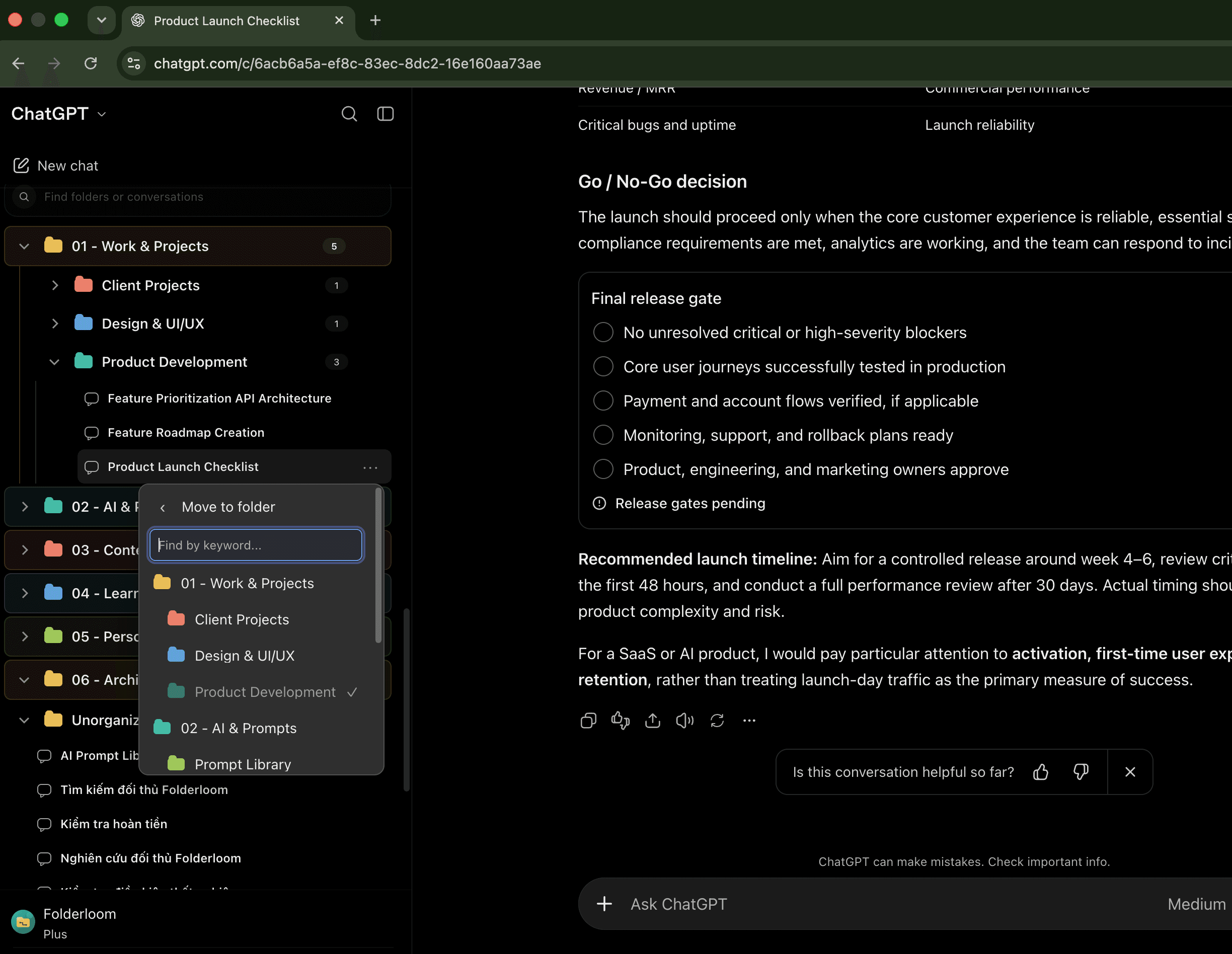
Example project structure
Client website
  Research
  Copy drafts
  Decisions
Archive