ChatGPT Nested Folders: Organize Chats into Subfolders
FOLDERLOOM · CHATGPT NESTED FOLDERS
When one project folder becomes hard to scan, split its conversations into a few useful subfolders. Folderloom adds a local hierarchy to your ChatGPT sidebar without changing the chat’s native Project context.
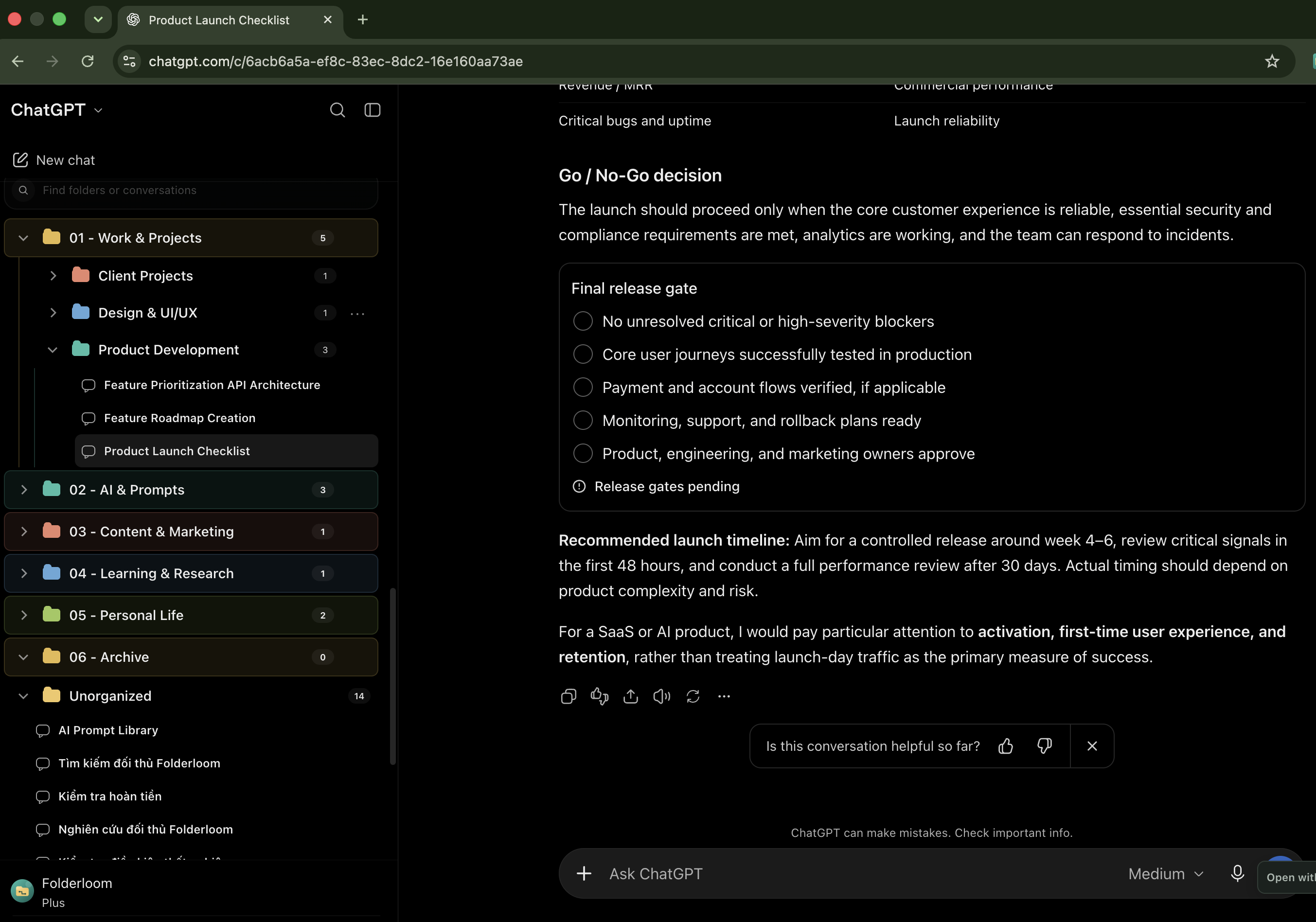
When nested folders help
A single folder works well until research, drafts and final decisions become difficult to distinguish. Subfolders give those stages a place without forcing you to search for every conversation. The useful question is where you would look for the chat again.
Start with one level of subfolders. For example, a client folder can contain a project folder, with Research, Drafts and Decisions below it. If most subfolders contain only one chat and you cannot remember their names, flatten the structure.
A local hierarchy, separate from native Projects
Folderloom supplies the folder tree inside supported AI websites in Chrome. It does not create nested native ChatGPT Projects, add project instructions or upload files to give the model context.
You can keep eligible chats in a native ChatGPT Project for shared context and use Folderloom folders to find those conversations. Moving a local reference between subfolders does not change native Project membership or the instructions applied to the chat.
Move chats and reorganize folders deliberately
Use the chat’s Move to folder action when dragging is inconvenient. Choose a destination in the existing tree and check that the conversation appears there. An ordinary chat item has one folder assignment; moving it changes that assignment.
Use folder menu controls to rename or move a folder when the project changes. A folder cannot be moved into itself or one of its descendants, and destinations that exceed the supported depth are excluded. Keep the hierarchy shallow instead of depending on unlimited nesting.
Know the folder and bookmark limits
Free includes three chat folders and ten bookmarks per isolated workspace. Subfolders are folders too, so they count toward that allowance. Try one project folder with two subfolders before deciding whether you need a larger tree.
Pro removes the folder and bookmark count limits. It does not turn a local tree into cloud storage or remove structural safeguards. The expanded example below is a planning example for a larger workspace; it is not a promise that all those folders fit on Free.
Use bookmarks and search alongside the tree
A bookmark is useful for the one chat you reopen every day, even when it already belongs to a subfolder. Sidebar search helps find folder names and conversation titles without expanding every branch.
Advanced Search can find words inside locally cached conversations when the title is not enough. Chats you have not opened and messages not loaded on this device may be missing. A nested folder does not automatically download or index an entire ChatGPT account.
What happens on another device or account
Folderloom requires a Knoveya account connected with Google. The folder structure, bookmarks and cached conversation text stay in this Chrome profile and are separated by account. Installing Folderloom on a second device does not copy the tree there.
Your original chat remains on ChatGPT. If it is deleted or your access changes, a folder reference may no longer open. Keep important information through an appropriate export or retention process; nesting is organization, not backup.
Set up a project and its subfolders
- Install Folderloom in Chrome, connect with Google and refresh your open ChatGPT tab. Pick one real project you already return to.
- Create its top-level folder. Use the folder menu to create a subfolder for a distinct stage, such as Research. Add another stage only if you have conversations for it.
- Move a discovered chat into the appropriate subfolder with Move to folder or drag and drop. In the move menu, check the current folder before choosing a different destination.
- Collapse the parent folder when you are working on something else. Expand it and reopen a conversation to confirm the structure is useful.
- Review the tree after a week. Prefer fewer clear destinations over a new subfolder for every chat. Keep frequently revisited conversations bookmarked.
Example: a client project with three stages
Client website
  Redesign
    Research
      Audience interviews
      Competitor review
    Drafts
      Homepage copy
    Decisions
      Approved direction

Research, Drafts and Decisions are folders.
Audience interviews and the other leaf items are chat titles.