AI Prompt Library for ChatGPT, Claude and Gemini
FOLDERLOOM · AI PROMPT LIBRARY
Save and reuse prompts locally across supported AI sites with Folderloom's Prompt Library.
Available now in FolderloomInstall Folderloom from the Chrome Web Store.
Your account and local search
Connect to Knoveya with Google to use Folderloom. Folder names, bookmarks, saved prompts and cached conversation text stay in Chrome on this device and are not synced to Knoveya.
Advanced Search finds titles and cached conversation text across ChatGPT, Claude and Gemini. Free opens the five newest matching chats; other results remain visible with blurred details and an upgrade option. Pro opens all matches. Unloaded messages, images and attachments may be missing.
Save a useful prompt once
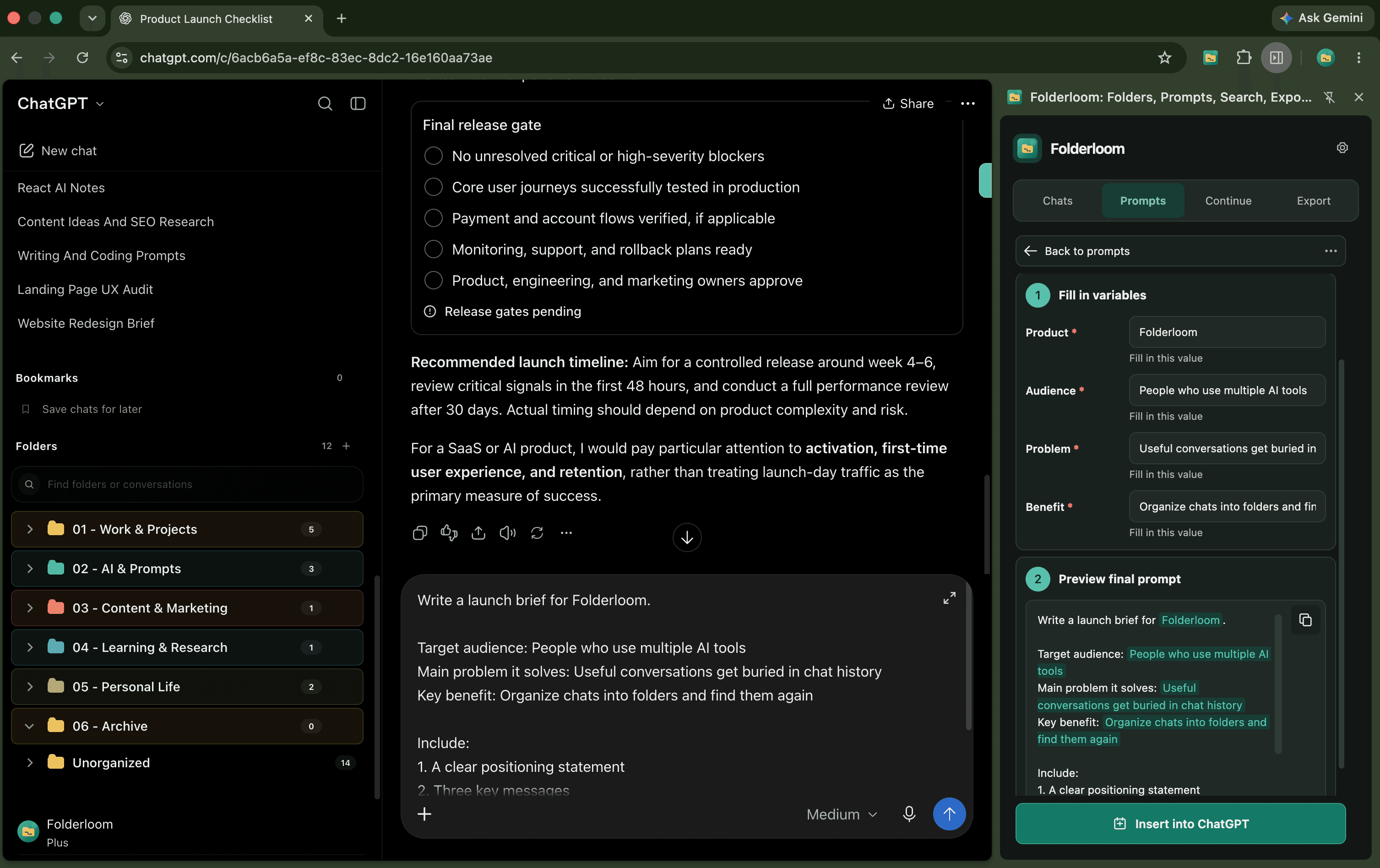
Prompt Library lets you save prompt text from a draft you choose to keep, place it in a prompt folder and insert it into a supported AI composer for review.
Prompt Library is available in the Chrome Web Store release.
Reuse prompts without cloud sync
Prompt Library uses local-first storage shared by ChatGPT, Claude and Gemini on the same browser. It does not send prompt text to Knoveya, and you decide when to insert or send it.
Pro adds prompt variables and templates.
What is available today
Folderloom provides folders, bookmarks, drag and drop, local search and Prompt Library across supported AI sites.
A prompt library is not conversation migration
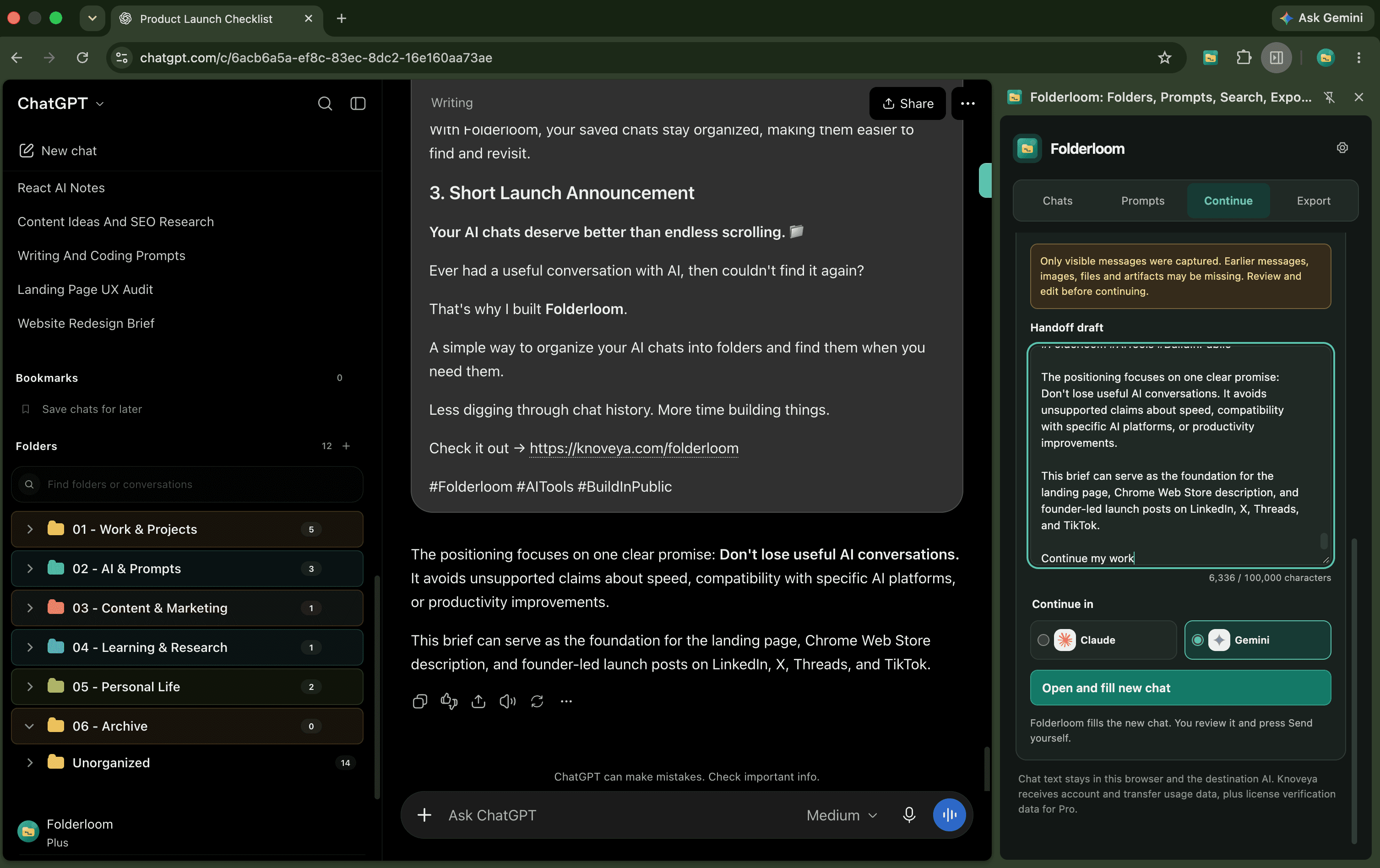
Reusing a prompt means inserting text you deliberately saved, not copying your entire conversation into another provider. The library shares those saved prompts across supported AI sites in the same browser, while folders and chat references remain scoped to each AI workspace.
Local-first storage does not protect text after you choose to send it to an AI provider. Review sensitive details before sending and follow the provider's own data policies. Folderloom does not automatically submit the inserted prompt.
Try the prompt workflow
- Choose a prompt you have used successfully more than once. Remove confidential client details before turning it into a reusable template.
- Separate the stable instructions from the details that change each time, such as audience, tone and output format.
- Save the prompt in a clearly named prompt folder and insert it into the AI composer.
- Review the inserted text and fill in the changing details before sending. Pro variables support reusable placeholders in this step.
- Check the result on each provider and adjust the wording where needed. A shared prompt does not guarantee identical answers.
An example reusable prompt
Review the following draft for an audience of {{audience}}.
Keep the original meaning. Flag unsupported claims.
Return three specific improvements, then a revised draft.

Draft: [paste only the text you intend to send]