Claude Folders for a Clearer Conversation Workflow
FOLDERLOOM · CLAUDE FOLDERS
Give Claude conversations a project structure you can keep using when your history grows.
Your account and local search
Connect to Knoveya with Google to use Folderloom. Folder names, bookmarks, saved prompts and cached conversation text stay in Chrome on this device and are not synced to Knoveya.
Advanced Search finds titles and cached conversation text across ChatGPT, Claude and Gemini. Free opens the five newest matching chats; other results remain visible with blurred details and an upgrade option. Pro opens all matches. Unloaded messages, images and attachments may be missing.
Organize Claude work around the project
Claude conversations often move between planning, drafts, analysis and feedback. Grouping them by project makes the next useful thread easier to recognize than a provider-only history list.
A small tree such as Work → Client → Research is usually enough. Add depth only when a folder becomes difficult to scan.
Folders, bookmarks and search
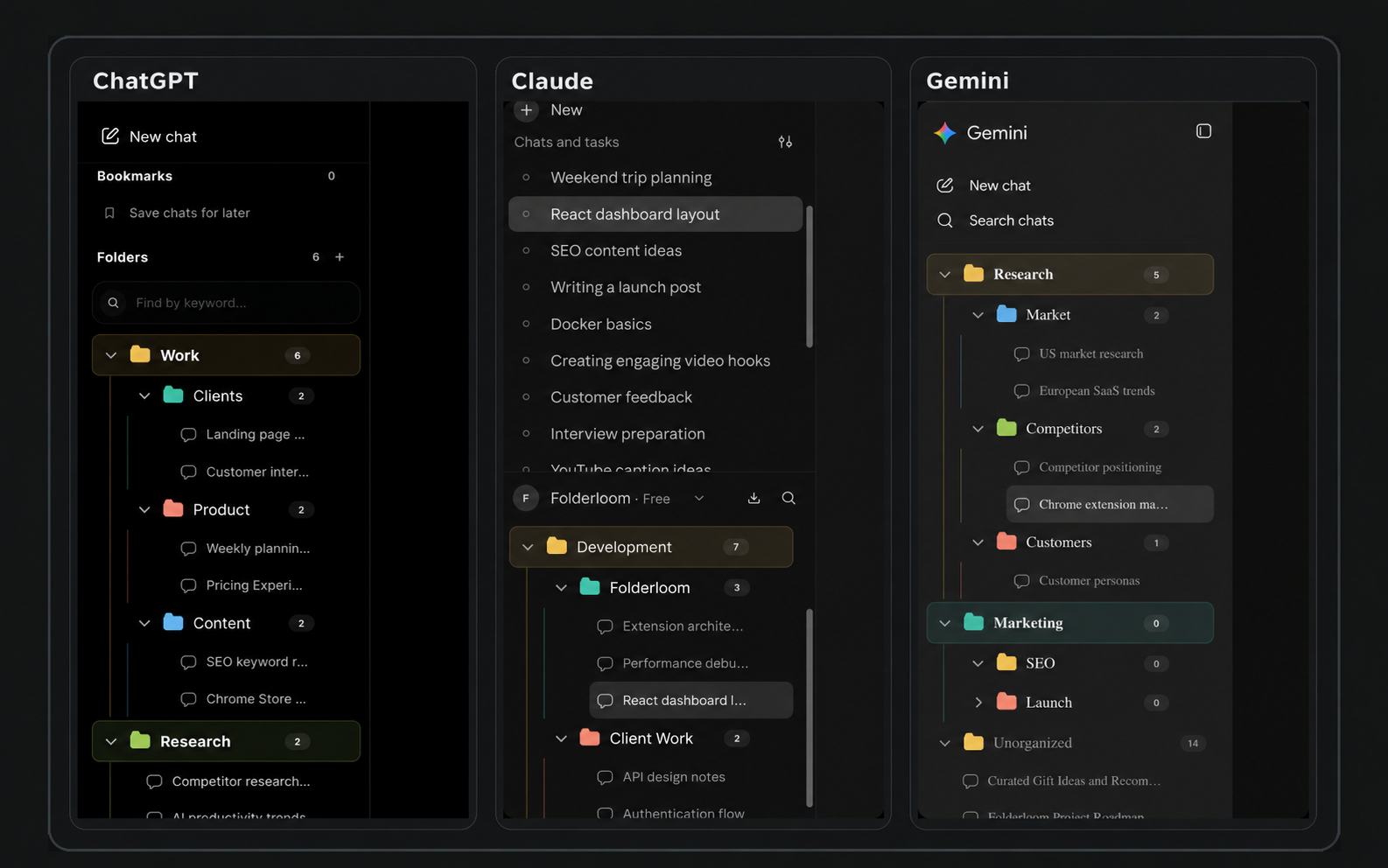
Folderloom adds nested folders and bookmarks to the Claude sidebar, then lets you search the folder names and visible chat titles locally. Drag and drop keeps maintenance quick when a project changes shape.
The extension stores organization metadata in Chrome local storage. It does not turn Claude conversations into a cloud backup.
Claude project context and Folderloom organization
Claude’s own project context belongs to Claude. Folderloom organizes references to sidebar conversations; adding a chat to a Folderloom folder does not move project files, instructions or artifacts into another chat. Keep source documents in the place where you normally manage the project.
For a quarterly report, use Analysis for evidence discussions, Drafts for candidate wording and Review for feedback. Bookmark the accepted revision so you can return to it before opening a fresh writing thread. You can use the same folder names in other AI workspaces, but their contents remain separate.
Keep the final draft easy to recognize
A writing project can accumulate several nearly identical conversations. Use meaningful titles in Claude where possible, then let folders describe the work stage and bookmarks identify the thread you actively use. This avoids relying on a long list of dates to choose the right draft.
Folderloom does not replace Claude's own project context or carry uploaded files into another conversation. It organizes sidebar references and adds a local Prompt Library and reviewed Continue across AI drafts.
When a conversation is not in the tree
Check that you are in the expected Claude account and Chrome profile, and that the conversation is available in the provider interface. Sidebar search finds folder names and chat titles. Advanced Search also finds cached conversation text across all three supported AI tools, with keywords highlighted. Only text saved on this device is searchable.
Keep important source material with your normal project files. Local organization is a convenience for retrieval, not a copy of Claude's conversation history.
Try a small organization routine
- Open Claude in Chrome after installing Folderloom and connecting with Google. Begin with a single writing or analysis project instead of reorganizing the entire history.
- Create a folder named for the deliverable, such as Quarterly report. Place the source analysis and first draft conversations inside it.
- Separate Drafts from Review only when each has enough chats to make the split useful. Use drag and drop or Move to folder.
- Bookmark the conversation with the latest accepted revision, not every experiment.
- Search for a distinctive word from the chat title before starting a duplicate thread.
Example project structure
Quarterly report
  Analysis
  Drafts
  Review
Reference