How to Export ChatGPT, Claude and Gemini Chats to PDF
FOLDERLOOM · EXPORT AI CHATS TO PDF
Open a conversation, preview its loaded messages and download a PDF with Folderloom Pro. Review the pages first: an export may not contain your complete chat history.
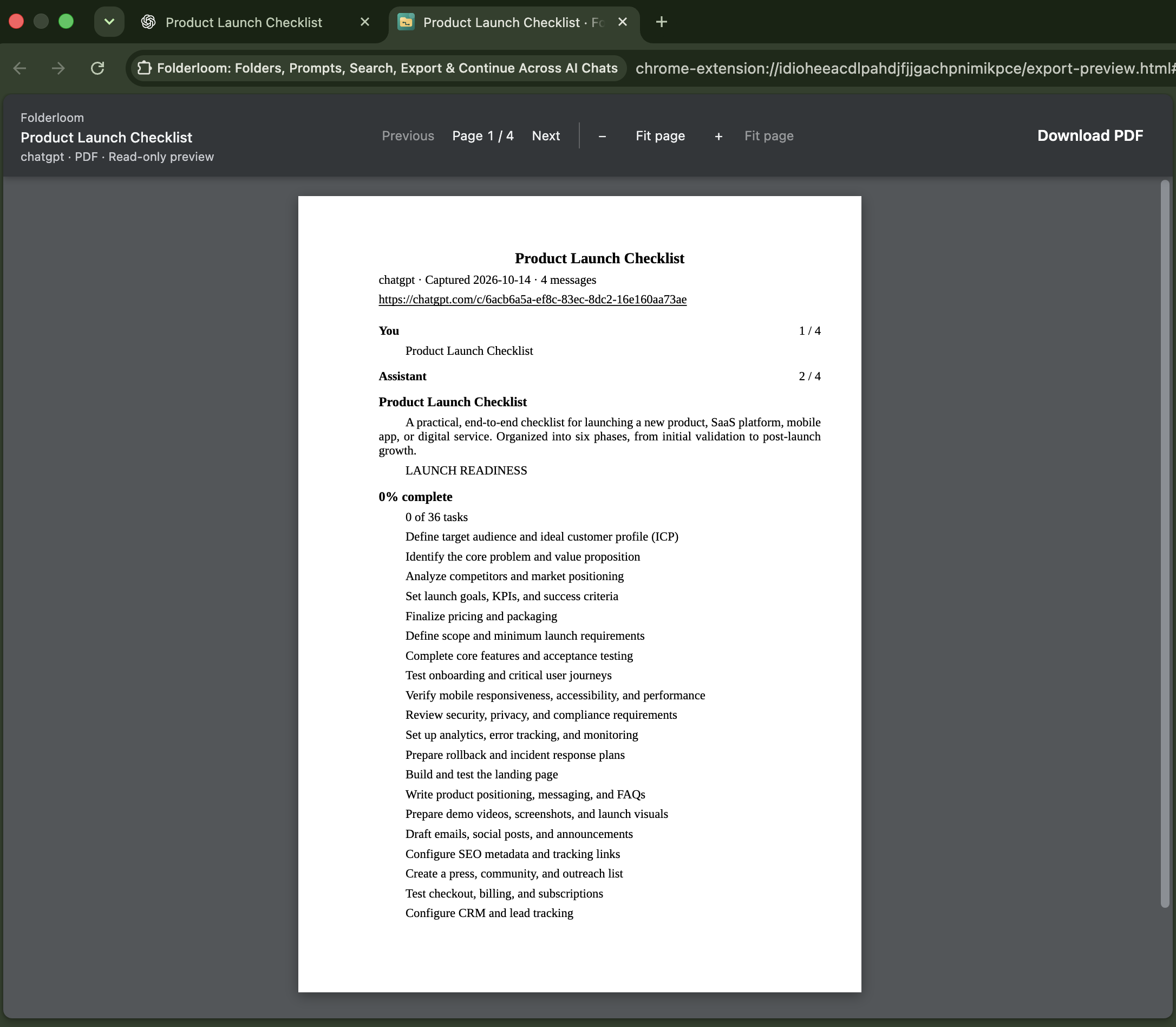
Keep a useful conversation as a PDF
A research discussion, a writing review or a technical explanation can be easier to revisit as a document. Folderloom Pro exports the conversation currently open in ChatGPT, Claude or Gemini into a PDF you can preview and download.
This is a snapshot of messages already loaded on the page, not an export of every chat in your AI account. The original conversation stays on its AI service; exporting does not delete, move or edit it.
What the PDF can include
The PDF can preserve readable message text, headings, lists, tables and code from the loaded conversation, with User and Assistant labels. It uses A4 pages; wide tables can use landscape pages. Review the preview to check the formatting of your own chat.
Visible resource names may be listed, but Folderloom does not download or embed image, attachment, file or artifact contents. A resource name is a reference, not a copy of that resource.
Loaded messages are not the complete history
Older messages that the AI page has not loaded, or has removed from its rendered interface, may be missing. Alternative response branches may also be absent. Folderloom reads the loaded page once without scrolling, requesting an account archive or fetching attachment bytes.
Before exporting, check that the messages you need are present. Then compare the preview with the source. If an important message is missing, return to the conversation, load it where possible and create a new preview. Even then, complete history cannot be guaranteed.
Pro access and an online check
PDF export requires an active Folderloom Pro license linked to your Google-connected Knoveya account. Free users see the Pro upgrade option. Pro costs $19.99 USD once, with no subscription; access follows your account across devices, while local workspace data does not sync.
Preparation and download require an online check of your Pro access. Local PDF generation does not mean offline export: an expired session, inactive license or unavailable account service can stop the action. Reconnect the right account or retry once the service is available.
Your chat text stays on your device
Folderloom reads the chat only after you choose to create a preview, and generates the PDF locally. Chat text is not uploaded to Knoveya for export. Account and license checks use the existing account service without sending the conversation content.
The preview is temporary, with no saved export history in Folderloom. Once you download a PDF, protect it like any other document containing private information. If you share or upload that file, its contents leave your device through the service you choose.
If a preview or download cannot finish
If no readable messages are found, open a conversation and wait for it to load. If the reply is still being generated, wait until it finishes. If Folderloom cannot read the tab, reload the source chat and create a new preview. A conversation that exceeds the export size limit needs a shorter source conversation.
Reloading the preview expires its session. Closing or navigating away from the original chat, or changing the account, can invalidate the preview too. Return to the source and create a new preview. The source tab can stay in the background while you review the PDF.
Some unsupported characters may appear as visible character-code markers. Review names, symbols, code and tables before keeping or sharing the file. If PDF rendering fails, return to the chat and retry; the preview is read-only and cannot repair or edit the conversation.
Export a chat to PDF in five steps
- Connect Folderloom with Google using the account that has your active Pro license. Open the conversation you want to keep in ChatGPT, Claude or Gemini.
- Wait for the AI reply to finish. Check that the messages you need have loaded on the source page; Folderloom does not scroll or load earlier history for you.
- Open the Folderloom Side Panel and select Export, or choose Export PDF in the floating tools menu to open that section.
- Choose Preview PDF in new tab. Wait for the PDF to prepare, then use the page and zoom controls to review the conversation, code and tables against the original chat.
- Choose Download PDF. Keep the original chat tab open and on the same conversation, with the same Folderloom account, until the download finishes.