Keep your AI conversations easy to find.

Get back to the work, without digging through the sidebar.

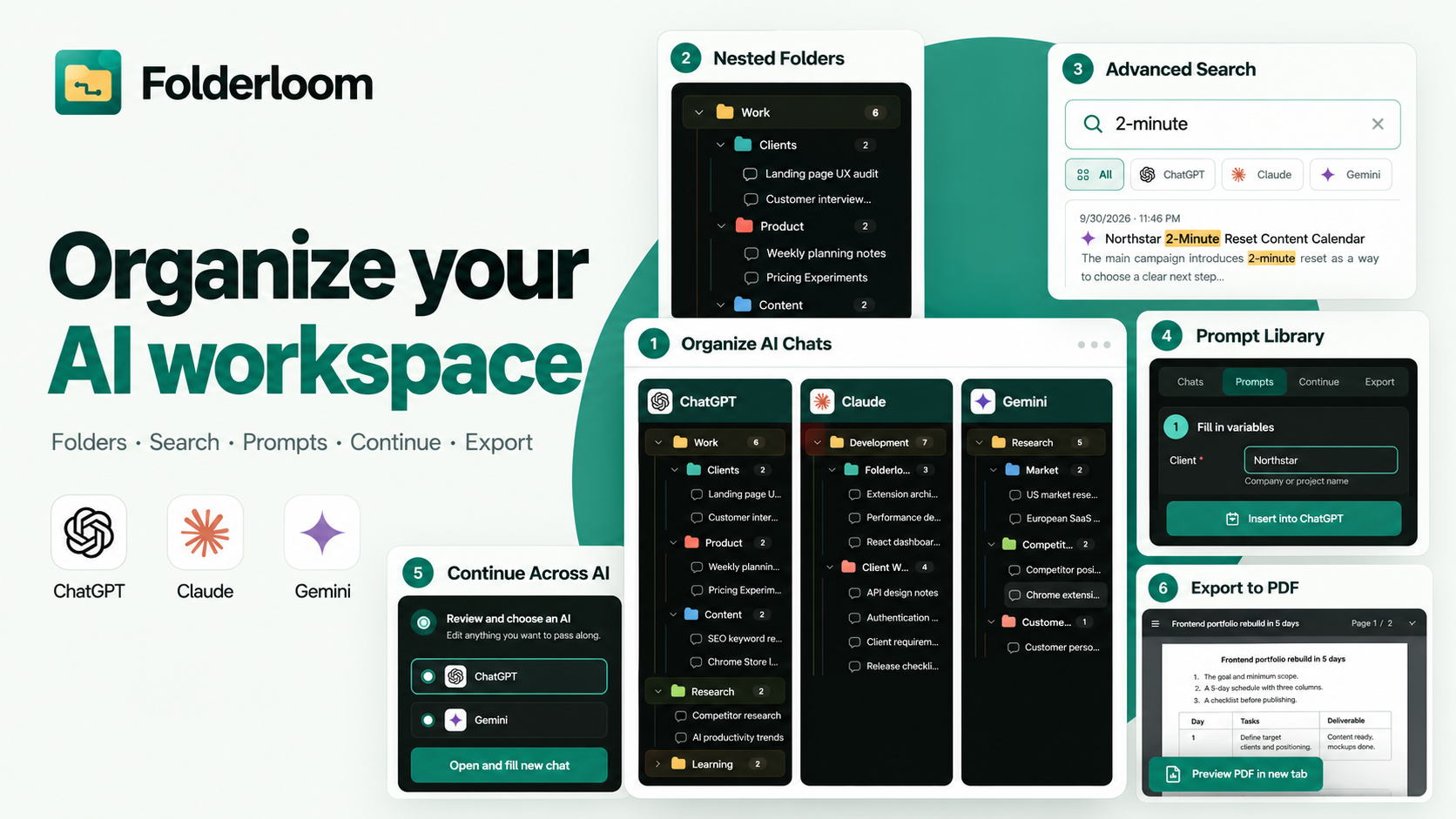
Folderloom is a Chrome extension for ChatGPT, Claude, and Gemini. It helps you organize chats, find something you remember writing, and pick up your work in another AI—all inside the tools you already use.

  • Connect with Google to get started
  • Organization data stays on your device
  • ChatGPT, Claude and Gemini supported
  • Folders, saved prompts and conversation search

Available on Chrome Web Store

REAL PRODUCT DEMO

See the same folder workflow across your AI sidebars.

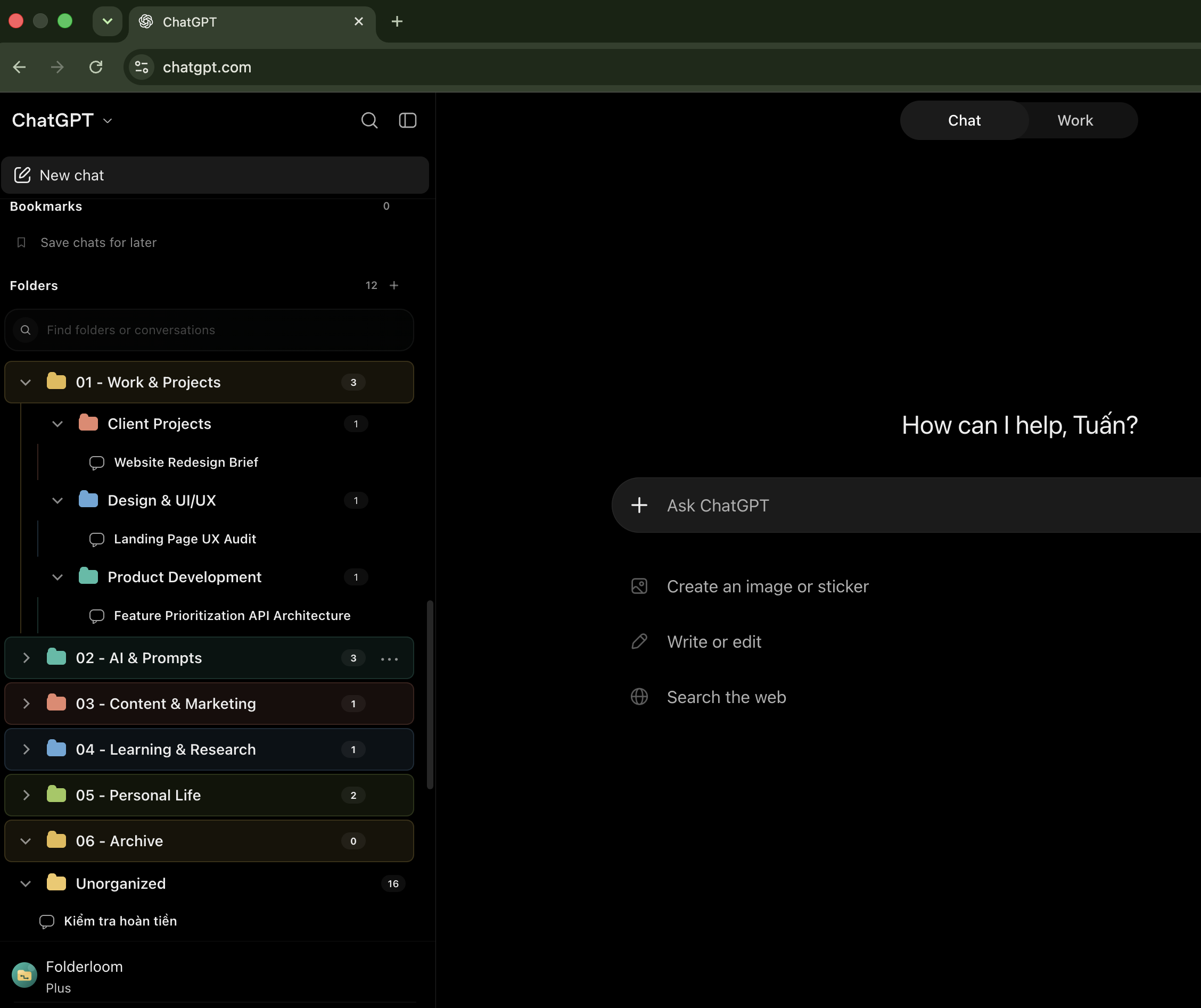
This quick walkthrough is recorded in ChatGPT. The same folder, bookmark, drag-and-drop, and search workflow is available in Gemini and Claude.

Recorded with Folderloom running in ChatGPT — no product mockup.

Nested folders Bookmarks Drag & drop

About 1 minute 50 seconds in ChatGPT · The same folder, bookmark, drag-and-drop, and search workflow is available in Gemini and Claude.

Folderloom · Chrome · ChatGPT

Less searching. More useful work.

Organize your chats, find useful ideas, reuse prompts, continue in another AI, and keep a conversation as a PDF.

Organize AI chats by project.

Keep client work, research and new ideas in separate chat folders. Create subfolders, drag conversations into place and bookmark the chats you want to revisit in ChatGPT, Claude or Gemini.

  • Nested folders and bookmarks in each AI workspace
  • Organization stays local to this browser, without cloud sync
  • Local data stays separate for each connected Google account

Read the organization guide →

Folders & bookmarksAVAILABLE NOW

Find the chat behind a phrase.

Search for a phrase from a useful answer, even if you forgot the chat title. Advanced Search checks titles and conversation text cached on this device across ChatGPT, Claude and Gemini. Review highlighted matches, filter by platform and open the original chat.

  • Conversation text is cached when you open a chat
  • Free opens the five newest matching chats; Pro opens every match
  • Unloaded messages, images and attachments may not be searchable

Read the Advanced Search guide →

Advanced SearchAVAILABLE NOW

Reuse prompts without starting over.

Turn a launch brief, writing checklist or research prompt into something you can use again. Save it in your Prompt Library, then insert it into ChatGPT, Claude or Gemini. With Pro, fill in template variables and preview the prompt before inserting it.

  • One local prompt library across the three supported AI sites
  • Pro templates let you change details such as product and audience
  • Review the inserted prompt and choose when to send

Read the Prompt Library guide →

Prompt LibraryAVAILABLE NOW

Continue a chat in another AI.

Take a conversation from ChatGPT to Gemini, or between any two supported AI tools. Choose Read visible chat to create an editable draft from the text and code on screen. Review it, open it in the destination AI and choose when to send.

  • Transfer in either direction between ChatGPT, Claude and Gemini
  • Draft stays in your browser; Pro removes the monthly transfer limit
  • Unloaded messages, images, files and artifacts may not carry over

Read the Continue across AI guide →

Continue across AIAVAILABLE NOW

Export AI chats to PDF.

Keep a research summary, project plan or useful answer as a document you can revisit. Export to PDF is available with Folderloom Pro: open Export in the Side Panel, choose Preview PDF in new tab, then review and download the file.

  • Keep headings, lists, tables and code from ChatGPT, Claude and Gemini
  • Generate the PDF on your device without uploading chat text to Knoveya
  • Loaded messages only; older history may be missing. Images, files and artifacts are not embedded.
  • Preparation and download require an online check of your account-linked Pro access

Read the PDF export guide →

PDF exportAVAILABLE WITH PRO

WHO IT'S FOR

Your AI chats, organized around your life.

Whether you're working, learning, building something, or planning your next adventure, keep the conversations worth revisiting easy to find.

Work & Clients

One workday. Dozens of conversations.

Keep client notes, research, meeting prep, and project discussions organized, so you can get back to the right conversation when you need it.

Ideas & Projects

Good ideas shouldn't disappear into your chat history.

Organize startup ideas, coding discussions, creative drafts, and side projects as they grow.

Learning & Research

That useful explanation is somewhere in an old chat.

Keep study notes, research threads, and learning topics together. Bookmark the conversations you'll want to revisit.

Everyday Life

Your everyday ideas deserve a place too.

From travel plans and writing ideas to hobbies and personal projects, keep useful AI conversations within reach.

Less searching through old chats. More picking up where you left off.

Explore Folderloom

Start free. Make more room when you need it.

Start with Free, get more with Pro, or give Pro to your team of ten.

One-time paymentNo subscriptionUse Pro on your devicesSecure checkout

FREE TO START

Folderloom Free

$0

  • 3 chat folders in each AI tool
  • 10 bookmarks in each AI tool
  • 5 saved prompts and 3 prompt folders
  • Open your 5 newest matching chats
  • Upgrade to open older search matches
  • Continue chats in another AI 3 times a month (UTC)
Add to Chrome — start free
Most popular

FOR INDIVIDUALS

Folderloom Pro

$19.99$29one-time

Unlimited folders & bookmarks

  • Unlimited chat folders and bookmarks
  • Unlimited saved prompts and prompt folders
  • Fill-in-the-blank prompt templates
  • Open all matching chats in search
  • Continue chats across AI tools without limits
  • Preview and save chats as PDFs
  • Use Pro wherever you sign in
Get Folderloom Pro — $19.99

FOR TEAMS

Folderloom Business

$100$190one-time

$10 per person · 10 licenses included

Pro for your whole team

  • Everything in Pro
  • 10 Pro licenses for your team
  • Priority support
  • Unlimited folders and subfolders for each person
  • Find and reuse useful chats
  • Pay once. No subscription.
Get Folderloom Business — $100

Get Pro in three simple steps.

  1. 1Buy Pro securelyPay once and receive your activation key.
  2. 2Open Folderloom in your browserFind the Pro activation option in the side panel.
  3. 3Activate Folderloom ProPaste your key once. Pro is now yours to use.

Sign in with Google to use Folderloom. Pro works on your other devices too; your folders, prompts, and chat content stay on each device and don’t sync. PDFs include messages already loaded on screen, without images or attachments.

Visa Mastercard American Express Discover Apple Pay Google Pay JCB Diners Club UnionPay

Available payment methods vary by country and device. Logo credits

Real reviews. Real accounts.

Selected, unedited feedback from people using Folderloom — straight from the Chrome Web Store.

4.54 ratings Chrome Web Store· Verified

Your work stays on your device.

Your folders, bookmarks, saved prompts, settings, and search index are stored locally in Chrome. Folderloom doesn’t sync that content to Knoveya or between devices.

Read the full privacy details

Compare ways to organize AI chats.

Bookmarks keep links handy. Notes keep selected ideas together. Folderloom adds folders, reusable prompts and cached chat search inside your AI workflow. Compare how each approach fits the way you work.

AI chat organization: Folderloom compared with browser bookmarks, native chat history and Notion or Google Docs
WorkflowFolderloomBrowser BookmarksNative Chat HistoryNotion / Docs
Organize work across three AI toolsChatGPT, Claude and GeminiUse the same extension on all three; chat folders stay separateBookmark chat linksKeep links from different AI sites in one browser folderHistory within each AIRevisit conversations in the service where you created themCollect links and notesAdd selected AI work to a page or document
Group chats by projectNested chat foldersDrag chats into folders and subfolders on this deviceBookmark foldersOrganize saved links outside the AI sidebarProvider-specific organizationProjects and chat-management options vary by servicePages and Drive foldersOrganize Notion pages or Docs files in Google Drive
Save and reuse promptsAvailable nowSave locally, then insert into ChatGPT, Claude or GeminiLink to prompt documentsOpen the saved page to retrieve your promptInstructions within each AIReusable instructions depend on the service and setupKeep prompts in your notesCopy saved prompt text into your AI chat
Adapt a prompt with variablesAvailable with ProFill {{variables}}, preview the result and insert itLinks onlyOpen a prompt document to edit its detailsService-specific setupTemplate and instruction workflows vary by AI toolEdit a saved templateChange the details in your page or document before copying
Find a chat by title or phraseTitles and cached chat textSearch locally cached text across all three AI tools. Free opens five newest matches; Pro opens all.Search saved bookmarksFind saved links; bookmark search does not read chat messagesSearch within each AISearch options and coverage depend on the serviceSearch saved notesFind the text you added to your pages and documents

✓ indicates support for the workflow described; — indicates a different or manual approach. Compare the cell details, not the symbols alone. This table covers standard bookmarks, chat history and pages or documents, excluding optional AI features, add-ons and automations. Folderloom searches text cached on this device; unloaded messages and attachments may be missing. Features and plans can change. Sources reviewed October 15, 2026: Chrome Bookmarks, ChatGPT Projects, Claude Projects, Gemini chat management, Notion Web Clipper and Google Drive organization. Folderloom is independent of these services.

Folderloom overview: folders, nested folders, search, prompts, continue across AI and PDF export A practical guide to organizing AI chatsLearn how to organize ChatGPT, Claude and Gemini conversations by project with folders, bookmarks and local search. Read the guide

Frequently asked questions

What can Folderloom help me with?

Organize chats with folders and bookmarks, reuse prompts, search cached conversation text, and continue work in another AI. With Pro, preview and save loaded conversations as PDFs. Folderloom works inside ChatGPT, Claude and Gemini.

Can Advanced Search find my entire chat history?

Advanced Search searches titles and conversation text Folderloom caches locally when you open chats. Messages that haven’t loaded, images and attachments may be missing. It doesn’t read your entire history in the background or send your chat text or search keywords to Knoveya.

Does Folderloom sync my data between devices?

Not currently. Folders, bookmarks, prompts, settings and cached chat text stay in Chrome on each device. Your Pro access follows your account across devices; your local workspace doesn’t sync to Knoveya.

Do I need an account?

Yes. Connect to Knoveya with Google to use Folderloom and manage your Free or Pro access. Your folders, prompts and search cache stay on your device.

What does Free include?

Free includes 3 chat folders and 10 bookmarks per workspace, 5 saved prompts, 3 prompt folders, and 3 cross-AI transfers per UTC month. You can open the five newest chats matching your search. Other matches remain visible with blurred details and an upgrade option. Pro costs $19.99 USD once, lets you open every match, and includes PDF export of loaded messages.

What does Business include?

Business includes Pro access for 10 team members and priority support, for a single $100 payment.

Will Folderloom send a chat to another AI automatically?

No. Choose Read visible chat to prepare an editable draft from visible text and code. Review it in the destination AI’s composer and choose when to send. Unloaded messages, images, files and artifacts may not carry over.

Your next good idea might already be in an old chat.

Give your conversations a place, keep your best prompts handy, and find your way back to useful work.

  • ChatGPT
  • Claude
  • Gemini
Add to Chrome — start free

Available for ChromeConnect with Google to get started

5 fresh prompts, every month.

Get 5 practical prompts for ChatGPT, Claude and Gemini, delivered to your inbox every month.

Sign up for future prompt emails. Privacy Policy