ChatGPT Projects vs Folders: When Each Helps
FOLDERLOOM · CHATGPT PROJECTS VS FOLDERS
ChatGPT Projects and Folderloom folders solve related organization problems at different layers. Choose based on the context you need.
Move an existing chat into a Project
For an eligible ChatGPT conversation, drag the chat onto the Project or open its menu and choose Move to project. After moving, the chat inherits the Project’s instructions and file context. This is a native ChatGPT action, separate from Folderloom’s Move to folder.
If Move to project is missing, check the conversation’s eligibility and workspace restrictions. OpenAI states that chats created with a GPT cannot be moved into a Project. Start a new chat in the Project when the existing conversation cannot be moved.
Can the same chat be in a second folder?
In Folderloom, an ordinary conversation item has one folder assignment. Move to folder changes that assignment; it does not add the same item to two folders. Bookmark the chat if you also want a quick way to reach it without changing its folder.
Do not duplicate a conversation just to assume its history will stay synchronized. Folderloom’s local duplicate fallback is a separate item that opens the same original chat; a verified native branch is a different conversation. Neither creates a second native Project membership.
Shared Projects and Canvas are different needs
ChatGPT provides its own Project sharing and Canvas tools. Folderloom folders do not share a Project with collaborators, grant access to a chat or organize Canvas documents as independent files.
Use the native sharing controls when another person needs access, and check what the Project exposes before inviting them. A local folder name or bookmark does not grant anyone else access to the original conversation.
Your account and local search
Connect to Knoveya with Google to use Folderloom. Folder names, bookmarks, saved prompts and cached conversation text stay in Chrome on this device and are not synced to Knoveya.
Advanced Search finds titles and cached conversation text across ChatGPT, Claude and Gemini. Free opens the five newest matching chats; other results remain visible with blurred details and an upgrade option. Pro opens all matches. Unloaded messages, images and attachments may be missing.
Use ChatGPT Projects for native context
Projects are useful when a workspace needs provider-native instructions, files and conversations. They keep that context close to the ChatGPT work itself.
A Project is a good fit when the main question is: what instructions and files should ChatGPT use for this work?
Use folders for a broader organization layer
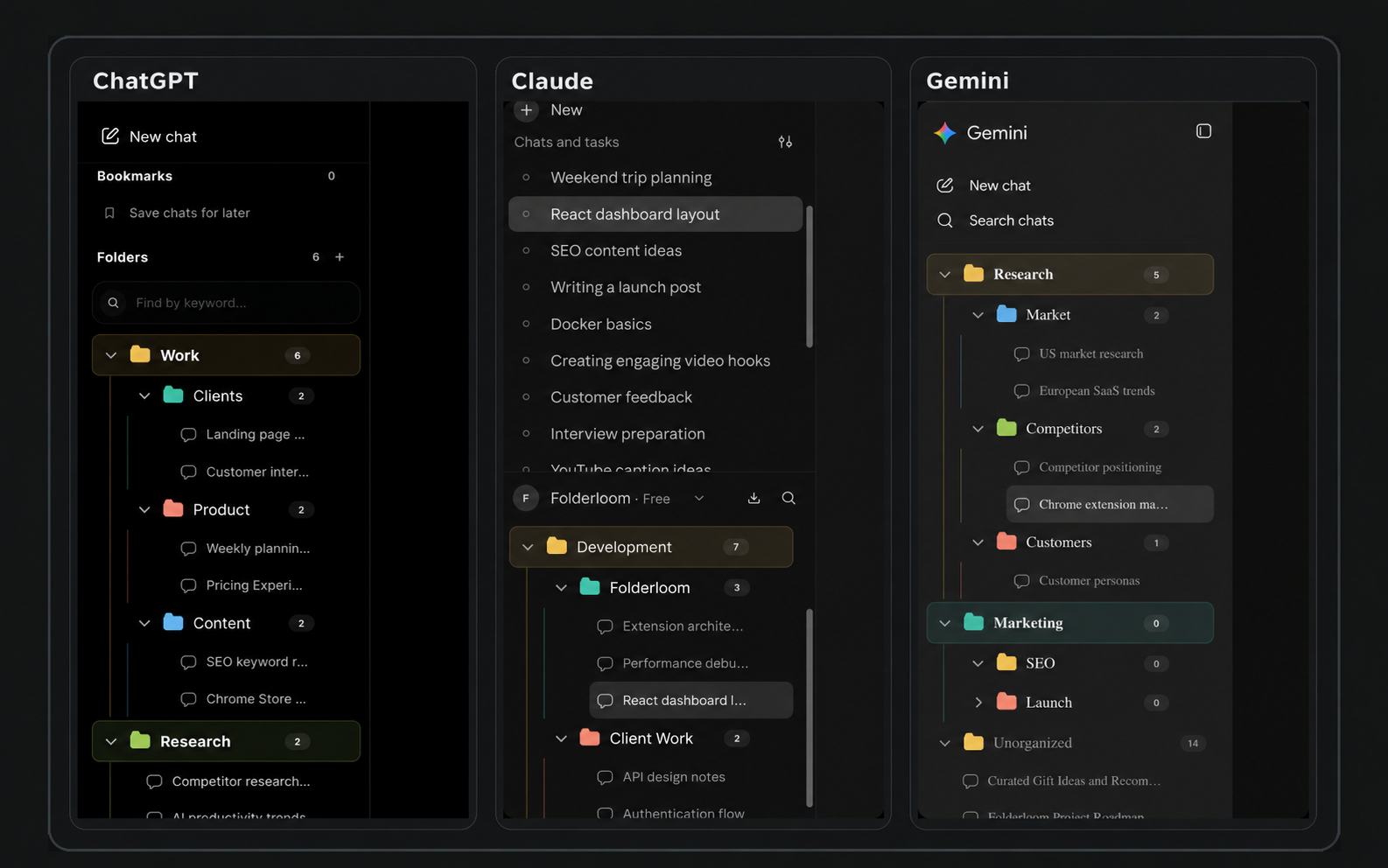
Folderloom folders organize visible chats with nested structure, bookmarks, drag and drop and local title and cached conversation search. They are useful when the main question is: where should I find this conversation again?
Folderloom works across ChatGPT, Claude and Gemini, while each provider keeps its own native context and history.
A practical comparison
Projects offer deeper ChatGPT integration. Folders offer a lightweight tree and a consistent organization habit across AI tools. They can complement each other rather than compete: use Projects for context and folders for retrieval.
Do not confuse local-first with offline AI
Folderloom stores its folder structure, bookmarks and chat references locally. ChatGPT still provides the conversation itself and needs its normal service access. The extension does not make Projects portable, back up uploaded files or give another AI access to a Project's context.
Every Folderloom feature requires a Knoveya account connected with Google. Your folders, prompts and search index stay locally in Chrome, separated by account. Pro follows the account across devices; the local workspace does not sync.
Try a small organization routine
- Ask whether the work needs shared instructions or files inside ChatGPT. If so, start with a native Project.
- Ask whether the main difficulty is retrieving existing conversations across a growing history. Try a small Folderloom tree and a few bookmarks.
- Keep a ChatGPT Project for a client brief and use the same client name for organization in Claude or Gemini. These remain separate provider workspaces.
- Avoid duplicating every native label in the extension. Keep only the folder structure that actually helps you find a conversation.
Compare the two approaches
| Need | ChatGPT Projects | Folderloom folders |
|---|---|---|
| Project context | Native files and instructions for ChatGPT | Organization metadata only; does not supply model context |
| Nested structure | A project groups its chats and resources | A nested folder tree for sidebar conversations |
| Retrieval | Native chat search, including project chats | Local folder-name and title search, cached conversation text search, and bookmarks |
| Across AI providers | Within ChatGPT | ChatGPT, Claude and Gemini, with separate organization per AI |
| Setup | Native ChatGPT feature | Chrome extension; Google-connected Knoveya account required |
For native Projects capabilities, see OpenAI's Projects documentation (checked October 16, 2026). Provider features can change independently of Folderloom.